

Library
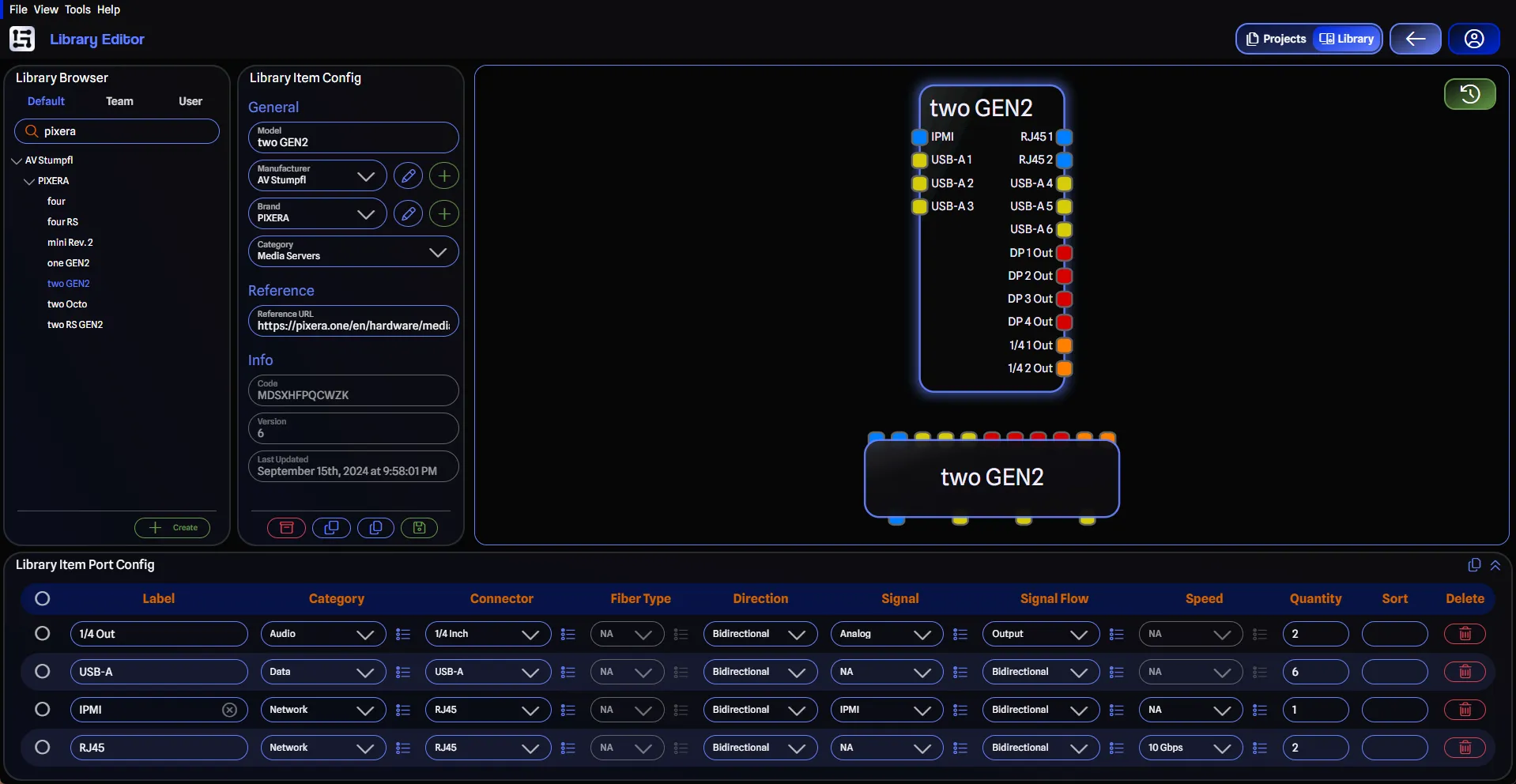
The library in GearConnect contains reusable gear definitions, connectors, and templates that you can use across your projects. GearConnect contains three types of libraries: Default, User, and Team.
Library Types
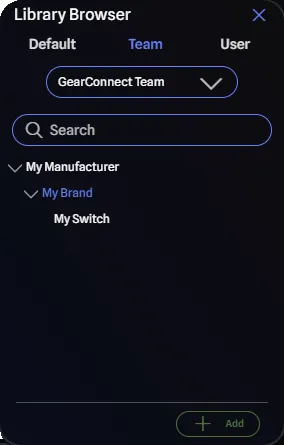
GearConnect provides a three-tier library system to organize gear at different levels of access and ownership.
Default Library
The default library is curated and maintained by the GearConnect team:
- Ownership: Owned and maintained by GearConnect
- Access: Read-only for all users
- Usage: Available in all projects (user and team)
- Content: Professional gear definitions, connectors, and templates
- Requests: Users can request new gear to be added to the default library
User Library
Your user library contains items that belong to you:
- Ownership: Owned by you individually
- Access: Only you can view and edit
- Usage: Available in your user projects
- Management: Edit in your Library Editor
- Privacy: Not visible to teams unless you copy items to them
Team Library
Each Team has a shared library accessible to all members:
- Ownership: Owned by the team
- Access: All team members based on their role
- Usage: Available in that team’s projects
- Management: Editable by members with write access
- Isolation: Separate from other teams’ libraries
Request Default Library Gear
If you need gear that’s not in the default library, and it’s common gear that would benefit many users, you can request it. The goal is to keep the default library comprehensive and useful for all users.
- Go to Help > Request Library Item
- Provide details about the gear (manufacturer, model, specifications)
- Include any documentation or datasheets if available
- The GearConnect team will review and add it to the default library
Submit to Default Library
If you have created a library item that you believe would benefit other GearConnect users, you can submit it for inclusion in the Default Library (Pro feature).
Submission Process
- Create or edit a library item in your User or Team library
- Save all changes to the item
- Click the Submit to Default Library button in the Library Editor toolbar (top right of the preview)
- Your submission enters a review queue with the status Pending
Submission Status
Badges are displayed in the Library Browser when viewing your library items in the Library Editor:
- Pending: Your submission is waiting for initial review
- In Review: A GearConnect staff member is actively reviewing your submission
Once your submission is reviewed, the badge is removed and you will receive an email notification. If your submission is rejected, the email will include feedback explaining why.
Accessing Libraries
You can access and work with libraries in two main locations:
Library Browser in Projects
The Library Browser pane appears in the Draw Page when working on projects:
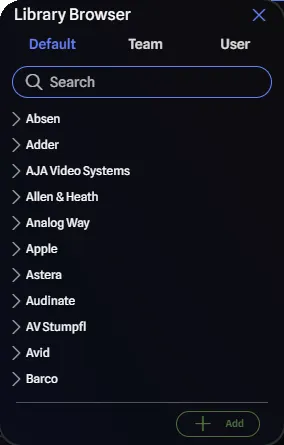
- Displays available library items based on your current project context
- Organized by manufacturer → brand → gear item for easy browsing
- Includes search functionality to quickly find items
- Add gear to your project by dragging items to the drawing or clicking Add
See Library Browser (Draw Page) for detailed usage.
Library Editor
The Library Editor is a dedicated page for managing and creating library items:
- Access from the navigation selection at the top right of the app
- View and edit all your library items in one place
- Create new library items from scratch using the Create button
- Copy and customize existing items
- Live preview shows items as you build or edit them
- Select items to view and edit their configuration
See Library Editor for detailed usage.
Team Library Access
Access to team libraries is determined by your Team role. Different roles have different levels of access to create, edit, delete, and manage library items.
For complete details on what each role can do with team libraries, see Team Roles & Permissions.
Managing Items
Creating
To create new library items, use the Create button in the Library Editor. The item will be created in whichever library you currently have selected (User or Team).
For detailed instructions, see Creating New Library Items.
Editing
To edit library items, select them in the Library Editor and modify their properties in the configuration panes:
- General settings (model, manufacturer, brand, category) - See Library Item Config.
- Port configurations - See Library Item Port Config.
Note: Default library items are read-only. To modify a default library item, copy it to your user or team library first.
Copying
You can copy library items between different libraries to customize and share gear. Use the Copy to… button to copy to a different library (User or Team), or use the Copy button to duplicate within the current library.
For detailed instructions, see Copying Library Items.
Archiving
To archive (delete) library items, use the Archive button. Archived items are removed from the Library Browser but remain accessible to existing projects.
For details, see Archiving.
Library Items in Shared Projects
When you use a user or team library item in a project and share that project with someone, the library item definition is referenced in the project file. Recipients can see and use that library item within the shared project. The item remains accessible in the project even if you later archive it from your user or team library.
Important considerations:
- User and team library items used in projects are not private once the project is shared
- Recipients cannot browse your user library, but they can use items already in the project
- If you modify the library item in your user library, existing projects won’t update automatically
- Recipients can not copy the embedded library item to their own user or team