

Save Status
The save status is displayed in the top right corner of the screen. It shows several helpful pieces of information about your current save status.
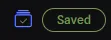
The app has three levels of saving:
- Data Save: This happens in real-time when you make changes – the server is updated with the new data, but the drawing may not be updated just yet. All changes flow from the data layer to the drawing layer.
- Drawing Save: This is the last time the data was saved back to the drawing. This is done every five seconds after the last change or when you manually save.
- Version History Save: This is the last time the version history (a snapshot of the project at that time) was saved. This is done every minute after the last change or when you manually save.
Usually what happens is the data layer of the app gets saved instantly when you make a change, and then the drawing save is queued to be saved in five seconds. The version history save is then queued to be saved in a minute.
The left icon with the checkmark indicates the Version History save status. The button with the Saved text indicates the Data Save status, changing its text and colour to match the current state.
Saved States
Section titled “Saved States”- Saved: The text will show Saved in green when the data is saved. The Data Save and the Drawing Save are up to date with the latest changes.
- Saving – Green: The text will show Saving… in green and pulse when a change has happened and the app is waiting the five seconds before saving the data. The Data Save is up to date, but the Drawing Save is behind.
- Saving – Yellow: This is the same as Saving – Green, but there is a large bulk operation pending in the background as well. In this case, the Data Save is queued to be saved, then the state will change to Saving – Green and continue as normal.
- Locked: The text will show Locked in red when the app is locked, no changes can be made, and saving is blocked. This happens when the app is performing a large operation, like opening, importing, or validating a project and will be cleared once the operation is complete.
- Read Only: The text will show Read Only in orange when the project is opened in a read-only state and cannot be edited, for example when viewing a project you do not have permission to change. Saving and syncing are disabled.
- Syncing: The text will show Syncing in orange while a Local Mode background sync is in progress. You can continue editing while it runs; once it completes, the status returns to the current save state, either Saving or Saved.
- Sync Error: The text will show Sync Error in red when a Local Mode sync fails. You will be prompted to run a full Project Validation, which re-opens the project from the server to validate the project’s integrity and repair any issues.
Version History States
Section titled “Version History States”- Version history is out of date: The icon will be grey without the checkmark when the Version History is behind. If the saved state says Saved, then this means the Version History is queued to be saved within the next minute. You can manually save the version history by clicking on the save status or saving the project in the file menu/keyboard shortcut.
- Version history up to date: The icon will be blue with a green checkmark when the Version History is up to date. This indicates that all levels of saving are up to date and the project is in a good state.
Clicking on the Version History button will open the Version History Dialog. Learn more here.
Server Sync Status
Section titled “Server Sync Status”When using Local Mode, an additional status indicator is displayed in the Main Menu Bar showing the last time your project was synced with the server.
- Last Synced Time: Shows when your project was last successfully synced to the server. This appears next to the Version History button. While a background sync is in progress, this shows the live sync progress instead, for example Syncing 45%.
- Not Synced: If your project has never been synced to the server, the status will display “Not synced with server”.
You can manually initiate a sync by:
- Clicking on the sync status text in the Main Menu Bar.
- Using the Sync with Server option in the File Menu.
For more information on syncing and Local Mode, see the Syncing section of the Local Mode page.