

Local Mode
Under regular operations, GearConnect stores every item in your project in a database, communicating this with the server in real-time. This real-time syncing happens when you perform actions such as adding gear, making connections, or editing project data.
While this allows for a lot of flexibility with how you work with your project data, not all users require this level of real-time communication and data storage. While editing your projects, this may even be undesirable, as the additional time it takes to sync data can cause delays in your workflow.
Furthermore, often you may be working on-site with limited internet access, so it is required to be able to work offline.
Local Mode, combined with Offline Mode, addresses and enhances all of these situations by saving project data locally on your device first. Project data is then synced with the server automatically in the background as you work. This experimental feature can significantly accelerate the editing process, especially for large projects, and unlocks powerful features like full undo and redo capabilities.
You can manage Local Mode settings via Experimental Features in the User Settings Dialog.
Installation
Section titled “Installation”There is nothing special about installing GearConnect for use with Local Mode or Offline Mode. Because the app is a PWA (Progressive Web Application), when you first visit the app and open your first project, it will automatically download everything it needs to run the app so that you can use it offline.
You can optionally install the app to your device for faster access by following the instructions for your preferred browser. Chrome instructions can be found here.
Enabling and Options
Section titled “Enabling and Options”To enable Local Mode:
- Navigate to the User Settings Dialog (accessible from the User Info menu in the top right).
- Go to the Preferences tab.
- Under Experimental Features, select your Local Mode preference.
The options available are:
- Disabled: Local Mode is disabled and syncing is done in real-time.
- Background Sync: Automatically syncs local changes to the server in the background shortly after you stop editing. You can continue editing while the sync is in progress, and new changes will be automatically picked up on the next sync.
Regardless of which mode you choose, you can always manually sync your project via the Sync with Server button in the File menu or by clicking the Last Synced Time text in the Main Menu Bar.
Basic project data and Version History is still saved to the server when online, but individual project items are only updated upon synchronization.
Syncing
Section titled “Syncing”When Local Mode is enabled, all project edits are saved locally first, then synced to the server automatically in the background, with the option to sync manually at any time.
The sync runs in a separate thread, completely isolated from the main application, so it does not slow down or interrupt your work.
Background Sync Behaviour
Section titled “Background Sync Behaviour”- Syncing begins automatically shortly after you stop editing.
- The project is not locked, so you can keep working while a sync is in progress.
- The save status in the Main Menu Bar changes to Syncing while a sync runs, then back to the current save state, either Saving or Saved, once it finishes.
- Under most circumstances, the project does not need to re-open unless the sync encounters a sync error and a project validation needs to run.
- Your local copy is always the source of truth (see Source of Truth).
Sync Status and Manual Sync
Section titled “Sync Status and Manual Sync”
- Last Synced Time: The time of the last successful server sync is displayed next to the Version History button in the Main Menu Bar. Clicking this time initiates a manual sync. When the project has never been synced, it will instead say “Not synced with server”.
- File Menu Option: The Sync with Server
option in the File menu performs the same manual sync action. This is also
available with the
Ctrl+Alt+Skeyboard shortcut.
Automatic background syncs run at a gentle, slower rate so they stay out of the
way while you work. Manual syncs are treated as a priority and run at a faster
rate to get your changes to the server sooner. You can trigger a faster sync by
clicking the Last Synced Time text, using the Ctrl+Alt+S shortcut,
or choosing Sync with Server from the File menu.
What Gets Synced
Section titled “What Gets Synced”Most of this process is seamless and transparent. Under the hood, a sync performs roughly the following:
- Checks the project exists on the server. If it is missing for any reason, a new project is created on the next sync, which generates new project codes.
- Syncs supporting project data first, such as layers, VLANs, and cable inventory.
- Then syncs your drawing, including gear, ports, and connections.
- Throughout, items are added to or removed from the server as needed so the server matches your local copy.
Source of Truth
Section titled “Source of Truth”Your local copy is always treated as the source of truth. If the version on the server is newer than the one on your device, syncing will still replace the server copy with your local one.
Queued Syncs
Section titled “Queued Syncs”Only one sync can run at a time, and background syncs never interrupt a sync that is already in progress.
- If another action would trigger a sync while one is running, that sync is queued.
- If several syncs are queued, only the most recent one runs once the in-progress sync finishes.
For example, if you quickly switch between several versions in Version History, the first switch starts a sync and you can keep switching freely. Only the version you land on last is synced once the in-progress sync completes.
Sync Errors
Section titled “Sync Errors”Because syncing happens in the background, a failure does not interrupt your work. If a sync runs into a problem:
- You are alerted, and the Main Menu Bar status changes to Sync Error.
- You are prompted to run a full Project Validation.
- Running it re-opens the project from the server and performs a full validation to bring your drawing and the server back in sync.
- If any errors are detected, you will be prompted to either repair or remove the problematic items.
Project Validation
Section titled “Project Validation”As part of the sync process, when saving, and periodically while working on a project, GearConnect performs a Project Validation to ensure the drawing and its underlying project data are in sync. This catches issues such as missing gear configurations, orphaned ports or connections, and labels or colours that have drifted between the drawing and the project data.
If issues are detected, a countdown dialog appears and validation begins automatically after 15 seconds. You can click Start Now to begin immediately, or Close Project to abort and return to the Projects Page.
For each issue found, you are presented with three options:
- Attempt Repair: GearConnect will try to re-add the item from the library and restore its connections where possible. In cases where the original gear cannot be resolved but enough item data is available, a generic item with a matching port count may be used as a fallback.
- Remove: The item is deleted from the drawing entirely.
- Close Project: Stops the validation and navigates back to the Projects Page.
You can check Apply this choice to remaining issues to automatically apply the same action to all remaining issues in the current validation run.
Local Data
Section titled “Local Data”When Local Mode is enabled, project data is saved locally on your device first, in your browser’s local database. It then syncs to the server automatically in the background. Even when using Local Mode, so long as you are connected to the internet, you can access all features of the application (minus the Experimental Feature - Real-Time Updates) providing a seamless experience.
The below information can help you understand the status of your projects.
Indicators
Section titled “Indicators”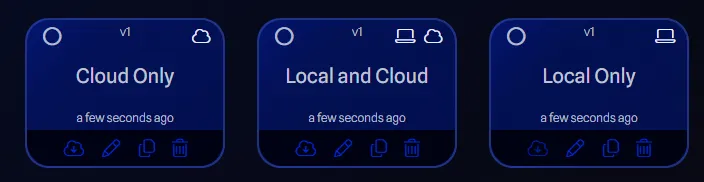
Project file cards on the Projects Page display icons indicating their storage status:
- Laptop Icon: Project exists only locally (not yet synced). You may go offline and continue working on the project.
- Cloud Icon: Project exists only on the server. If you go offline, you will not be able to access this project.
- Both Icons: Project is available locally and on the server. You may go offline and continue working on the project.
Managing Local Data
Section titled “Managing Local Data”You have several options for managing local data, offering you the flexibility to manage your projects as you see fit.
- Deleting Files: When deleting a project file, the app first attempts to remove it from both the server and local storage. If server deletion fails (e.g., due to network issues) or if the project isn’t present on the server, the file is deleted only from local storage.
- Disabling Local Mode: If you disable Local Mode, project files will no longer be loaded from your local storage. They will be loaded directly from the server. They will continue to be saved to your local storage, for when you switch back to Local Mode.
- Hard Project Load: Performing a hard load when opening the project will reset the project to the last state saved on the server. A warning message will appear, advising about potential data loss if the last sync is significantly outdated compared to your local changes.
- Delete Local Projects: An option to Delete Local Projects is available in the File Menu to clear locally stored project information. Please note that if any projects are not synced to the server, they will be deleted permanently.
- Reset Project Cache: Available in the Tools Menu to clear project data cached locally and from the server. This can be useful if you are experiencing issues with the local project cache and need to reset it.
Undo and Redo Features
Section titled “Undo and Redo Features”Local Mode unlocks additional features like Undo and Redo capabilities, including a full history timeline for easy navigation through your project changes. Learn more on the Undo Stack page.
Local Files with Teams
Section titled “Local Files with Teams”When working with teams in Local Mode, a few things to keep in mind as several people may be working on the same team projects. Each team member may have their own local offline copy of team projects they’ve opened so a few behaviors are important to understand.
File Deletion Behavior
Section titled “File Deletion Behavior”When a team member deletes a project from the team, the project is removed from the server. However:
- Other members may still have the project locally if they opened it before deletion.
- The project continues to exist on their machine’s local database.
- They can continue working on their local copy.
- They have the option to re-sync (restore) the deleted project back to the team or delete it locally.
Re-syncing Deleted Files
Section titled “Re-syncing Deleted Files”If you have a local copy of a project that was deleted from the team, you can re-sync it:
- The project will appear under the appropriate team and will have the local indicator showing but no cloud icon
- Open the project locally
- Click Not synced with server button in the Menu Bar to upload your local copy back to the server
- The project is restored on the server and becomes available to all team members again
While this feature was designed for faster local editing and offline support, a bonus is that it allows for project recovery in the event of accidental deletion by team members.
Offline Mode
Section titled “Offline Mode”Offline Mode is an extension of Local Mode that allows you to continue working on your projects even when disconnected from the internet. It is automatically enabled when you are not connected to any networks.
It can also be manually enabled in the User Settings Dialog, under Experimental Features, by enabling Force Offline Mode. This can be useful if you are on a local network that doesn’t have internet access, or if you are working in a location with limited internet access and want to continue working on your projects.
Indicators and Behavior
Section titled “Indicators and Behavior”
- An orange Offline bar appears at the top of the application window when active.
- All network requests (excluding essential telemetry) are disabled to allow you to operate offline.
Disabled Features
Section titled “Disabled Features”Certain features relying on server connectivity are disabled while Offline Mode is active:
- Expansion Card/Library Item reference buttons that open the manufacturer’s website.
- Saving new Version Histories.
- Running Project Validation against the server.
- A light weight validation is still performed in the background, however.
- Changing User Settings or Subscription information.
- Reloading the Library.
- Saving or copying library items (personal or team) in the Library Editor.
- Logging out.