

General Settings
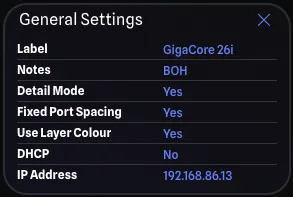
The General Settings Pane shows the selected gear item’s settings, some of which are editable.
Fields
Section titled “Fields”The various fields that are displayed in the General Settings Pane are:
- Label: The label of the gear item, this is editable by clicking on the label.
- Notes: Any notes you have added to the gear item, this is editable by clicking on the notes.
- Detail Mode: If Yes, the gear item is displayed in Detail Mode showing ports along the left and right sides. If No, the gear item is in Standard Mode with ports along the top and bottom. Clicking toggles between the two modes, rebuilding the gear and remapping connections. Learn more in Replacing Gear. Requires Local Mode to be enabled.
- Fixed Port Spacing: If Yes, the ports on the gear item will have a fixed spacing between them. if No, the ports will be evenly spaced across the gear item. Learn more in Fixed Port Spacing. Only applies to Detail Mode gear.
- Group Expansion Ports: If Yes, the ports on the gear item will be grouped by their expansion cards, separating them from the rest of the ports. If No, the ports will be combined with the rest of the ports. Learn more in Group Expansion Ports. Only applies to Detail Mode gear that have at least one expansion card.
- Use Layer Colour: If Yes, the gear item will use the layer colour in the drawing which is the default.
- When No is selected, you can choose a custom colour for the gear item and two new fields will appear:
- Primary Colour: The background of the gear item, editable by clicking on the colour.
- Secondary Colour: The border of the gear item, editable by clicking on the colour.
- When No is selected, you can choose a custom colour for the gear item and two new fields will appear:
Category Specific Fields
Section titled “Category Specific Fields”Some gear categories have additional fields that are specific to that category. These fields will be displayed below the general settings fields and are editable by clicking on the field unless otherwise noted.
Switches
Section titled “Switches”- DHCP: Whether the gear uses DHCP for automatic IP address assignment.
- IP Address: The IP address of the gear. Displays “DHCP” in Reports when DHCP is enabled.
- Subnet: The subnet of the gear. Displays “DHCP” in Reports when DHCP is enabled.
PTZ Cameras
Section titled “PTZ Cameras”- DHCP: Whether the gear uses DHCP for automatic IP address assignment.
- IP Address: The IP address of the gear. Displays “DHCP” in Reports when DHCP is enabled.
- Subnet: The subnet of the gear. Displays “DHCP” in Reports when DHCP is enabled.
Video Distributions
Section titled “Video Distributions”- DHCP: Whether the gear uses DHCP for automatic IP address assignment.
- IP Address: The IP address of the gear. Displays “DHCP” in Reports when DHCP is enabled.
- Subnet: The subnet of the gear. Displays “DHCP” in Reports when DHCP is enabled.
Lighting Fixtures
Section titled “Lighting Fixtures”- Profile: The DMX profile the lighting fixture is set to.
- Channels: The number of DMX channels the current profile is using. This is not editable and is determined based on the Profile set.
Lighting Distributions
Section titled “Lighting Distributions”- DHCP: Whether the gear uses DHCP for automatic IP address assignment.
- IP Address: The IP address of the gear. Displays “DHCP” in Reports when DHCP is enabled.
- Subnet: The subnet of the gear. Displays “DHCP” in Reports when DHCP is enabled.
Computers
Section titled “Computers”- DHCP: Whether the gear uses DHCP for automatic IP address assignment.
- IP Address: The IP address of the gear. Displays “DHCP” in Reports when DHCP is enabled.
- Subnet: The subnet of the gear. Displays “DHCP” in Reports when DHCP is enabled.
Video Switchers
Section titled “Video Switchers”- DHCP: Whether the gear uses DHCP for automatic IP address assignment.
- IP Address: The IP address of the gear. Displays “DHCP” in Reports when DHCP is enabled.
- Subnet: The subnet of the gear. Displays “DHCP” in Reports when DHCP is enabled.
Replay Systems
Section titled “Replay Systems”- DHCP: Whether the gear uses DHCP for automatic IP address assignment.
- IP Address: The IP address of the gear. Displays “DHCP” in Reports when DHCP is enabled.
- Subnet: The subnet of the gear. Displays “DHCP” in Reports when DHCP is enabled.
Amplifiers
Section titled “Amplifiers”- Profile: The power profile the amplifier is set to.
Audio Equipment
Section titled “Audio Equipment”- DHCP: Whether the gear uses DHCP for automatic IP address assignment.
- IP Address: The IP address of the gear. Displays “DHCP” in Reports when DHCP is enabled.
- Subnet: The subnet of the gear. Displays “DHCP” in Reports when DHCP is enabled.
Audio Distributions
Section titled “Audio Distributions”- DHCP: Whether the gear uses DHCP for automatic IP address assignment.
- IP Address: The IP address of the gear. Displays “DHCP” in Reports when DHCP is enabled.
- Subnet: The subnet of the gear. Displays “DHCP” in Reports when DHCP is enabled.
Power Distributions
Section titled “Power Distributions”- DHCP: Whether the gear uses DHCP for automatic IP address assignment.
- IP Address: The IP address of the gear. Displays “DHCP” in Reports when DHCP is enabled.
- Subnet: The subnet of the gear. Displays “DHCP” in Reports when DHCP is enabled.