

Projects
Projects in GearConnect allow you to organize your network and system drawings, gear configurations, cable inventories, and more. Projects can be personal or shared with a team for collaboration.
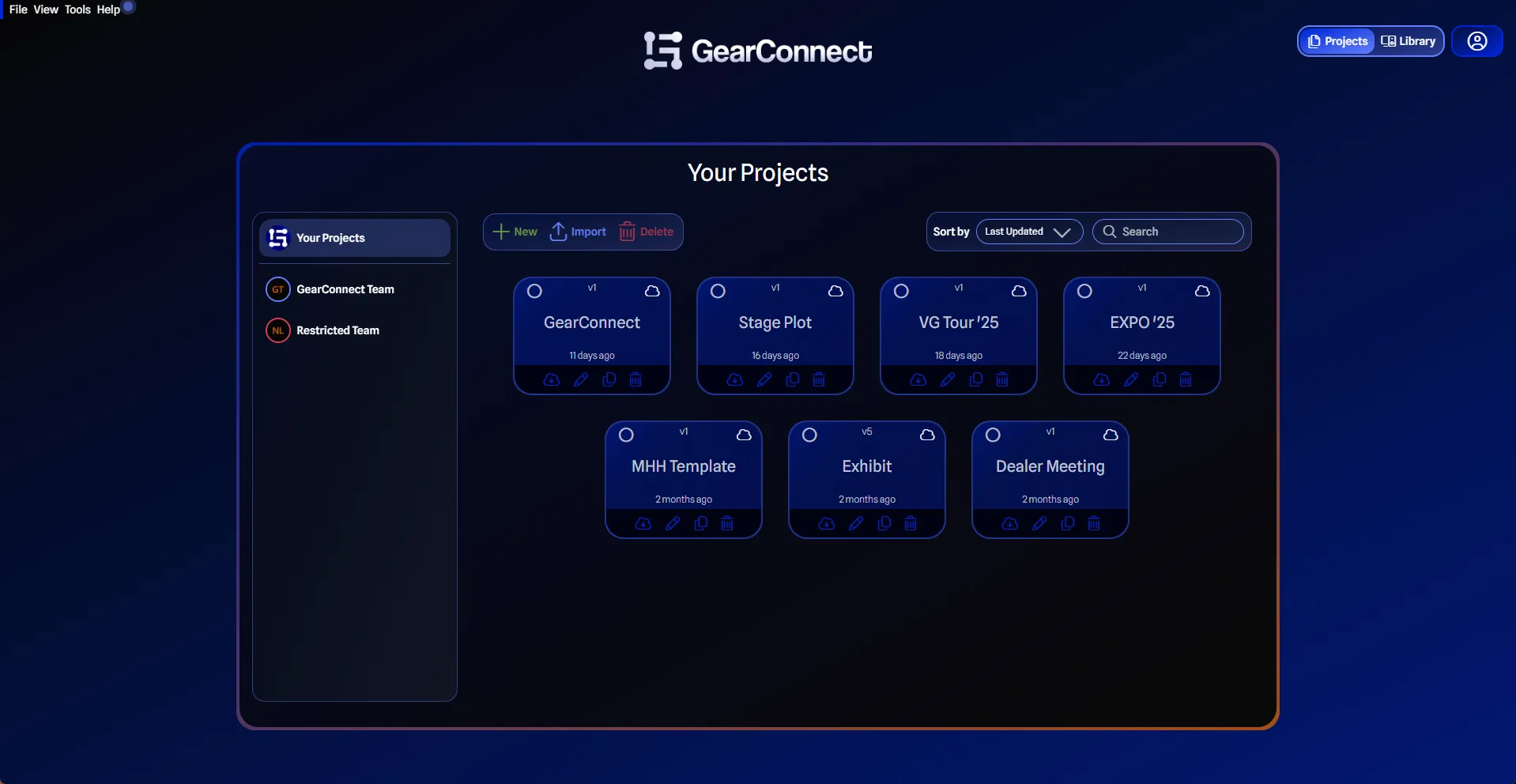
Team vs Your Projects
Projects in GearConnect can belong to either an individual user or a team:
Your Projects
- Ownership: Owned by you individually
- Access: Only you can view and edit
- Storage: Saved to your account
Team Projects
- Ownership: Owned by the team
- Access: All team members based on their role
- Storage: Saved to the team account
Team Selection
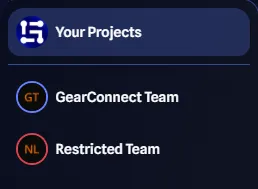
The Projects Sidebar allows you to switch between your projects and team projects.
- Your Projects button - Access your your projects.
- Team List - Each team you’re a member of.
- Team avatar and name.
- Restricted indicator (if applicable).
Creating Projects
To create a project:
- Select Your Projects or a team from the sidebar
- Click the New button
- Enter a project name
- Click OK
The project is created under your account or the selected team.
Managing Team Projects
Your ability to create and edit team projects depends on your team role. Team roles control access to projects, with different permission levels:
- Owner, Admin, Member - Full project access (create, edit, delete).
- Guest - Read-only access (view and export only).
- Billing Manager - No project access.
For complete details on team roles and permissions, see Team Roles & Permissions.
Copying and Moving Projects
Projects can be copied or moved between your personal projects and team projects, or between different teams, depending on your access level.
Copy Project
Copying a project creates a duplicate of the original project, including all its content (drawings, gear configurations, cable inventories, etc.). The original project remains unchanged.
Move Project
Moving a project transfers ownership and location. The project will no longer exist in its original location.
Instructions
- On the project card, click the Copy / Move Project button
- Select either Copy Project or Move Project
- In the dialog that opens, select the destination:
- Your Projects - Copy or move to your personal projects
- Team - Select a team you’re a member of (requires Owner, Admin, or Member role)
Local Mode
Local Mode allows you to work on projects offline by saving files directly to your computer. This feature works with both personal and team projects.
For complete details, see Local Mode.
Related Information
- Teams Overview - Learn about team features and management
- Team Roles & Permissions - Understand access levels
- Library - Working with personal and team libraries
- Local Mode - Using Local Mode with projects