

Members Tab
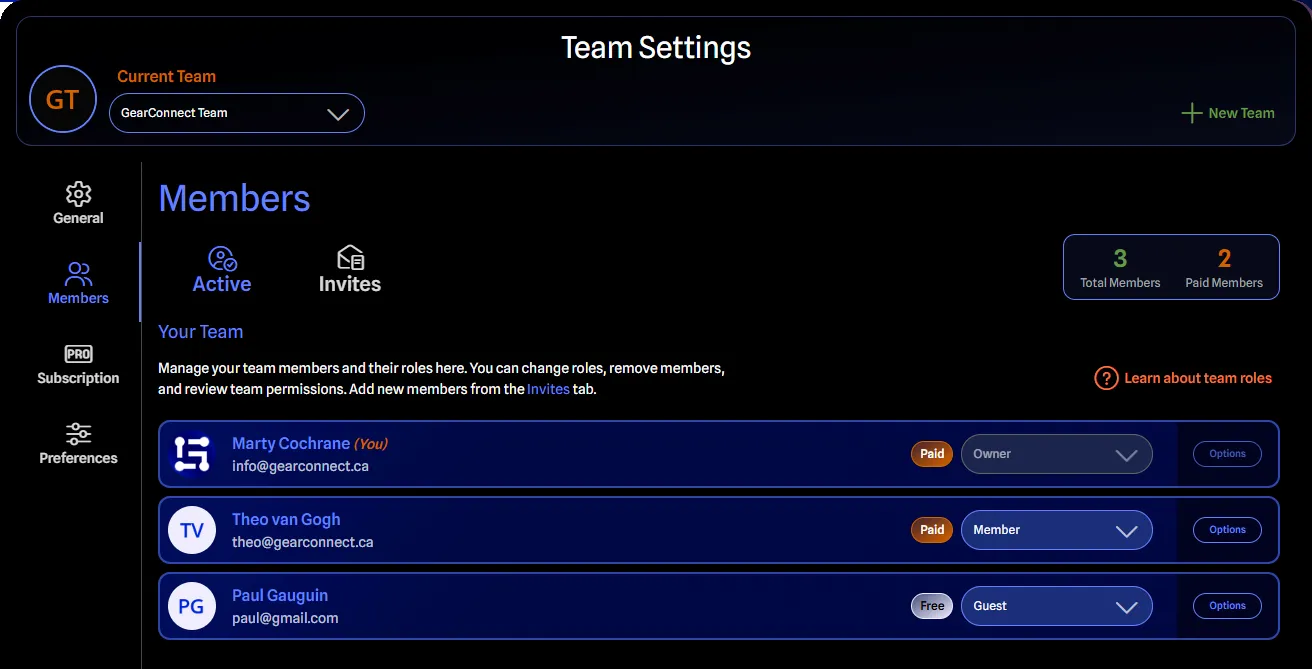
The Members Tab in Team Settings provides member management capabilities with two horizontal sub-tabs: Active and Invites.
Access
- View: All team members can view the Members Tab
- Manage: Only management roles (Owner, Admin, and Billing Manager) can add/remove members and change roles
Sub-tabs
The Members Tab contains two horizontal sub-tabs:
- Active - Displays current team members and their roles.
- Invites - Send new invitations and view pending invites.
Active tab
The Active sub-tab displays all current team members in a table format.
Member List
The table displays the following columns:
- User Avatar and Name: Profile picture and full name.
- Email: Member email address.
- Paid Status: Badge indicating if the member role is paid or non-paid.
- Role: Current role; dropdown for management, read-only badge for others.
- Actions: Available actions based on permissions (Remove Member, Transfer Ownership, Leave Team).
Member Stats
At the top right of the Members tab, statistics show the current member counts:
- Total number of members (paid and non-paid)
- Count of paid only members
These statistics help you understand your team structure and billing at a glance. Please note that it may take a moment for the paid member count to update after changes.
Role Changes
Management roles can click a member’s role to display a dropdown with available role options.
Available Roles:
- Owner (only available via Transfer Ownership action)
- Admin
- Billing Manager
- Member
- Guest (limited by paid member count)
To quickly get a refresher on team roles, a help icon labeled Learn about team roles opens a dialog that covers lists all the available roles. It shows if the role is paid or not, the number of members allowed for each role, and a brief description of the role’s permissions.
You can always refer back to this doc site for full details on each role and its permissions.
Role Change Process:
- Click the role dropdown for the target member.
- Select the new role.
- Review the billing confirmation dialog (if changing to/from paid role).
- Confirm the change.
Billing Review
When changing roles that affect billing, (to/from paid roles), a billing confirmation dialog appears to review the upcoming changes and ask you to confirm.
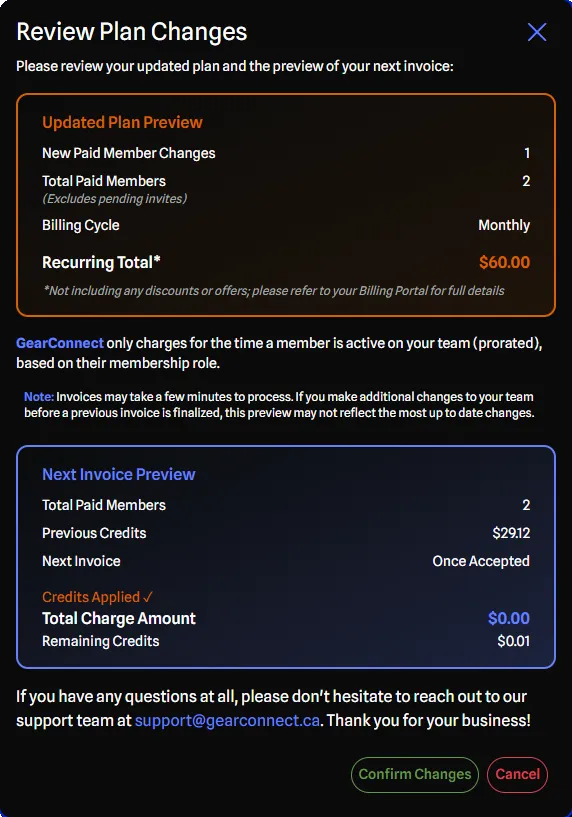
The Review Plan Changes dialog appears when you change an existing member to or from a paid role. The confirmation dialog displays the following details:
- Updated Plan Preview
- Shows how many paid members you are changing
- Shows the total paid members (including pending invites)
- Shows your billing cycle and the new total cost (excluding discounts or credits)
- Represents what you can expect to start paying on a monthly or yearly basis
- Next Invoice Preview
- Shows the total paid members for the next invoice
- Shows when you can expect your next invoice
- Shows the total expected charge
- Shows any credits before and after the change, if applicable
- Note: This section may not appear if your Team is on a trial and you have not added a credit card, as you will not have an upcoming invoice yet
For role changes, the charge or credit is immediate upon confirmation.
Transfer Ownership
Transferring team ownership is an Owner-only action.
Requirements:
- Must be the current Owner
- Target member must be an Admin
Process:
- Open the Active sub-tab in the Members Tab.
- Locate the Admin you want to transfer ownership to.
- Click the Transfer Ownership action for that member under the Options button.
- Review the confirmation dialog and confirm.
What Happens:
- The selected Admin becomes the new Owner.
- You (current Owner) become an Admin.
- The new Owner gains full team control.
- This action is immediate and cannot be undone without transferring back.
Remove Member
Management roles (Owner, Admin, and Billing Manager) can remove members from the team:
Process:
- Navigate to the Active sub-tab in the Members Tab.
- Locate the member you want to remove.
- Click the Remove action for that member under the Options button.
- Confirm the removal in the dialog.
What Happens:
- The member loses access to all team projects and library items.
- Any prorated credit for unused time is applied to your team account.
- If the removed member is not on any other teams with a paid role, they will lose Pro access.
Leave Team
Team members can remove themselves from a team (unless they are the Owner).
Process:
- Navigate to the Active sub-tab in the Members Tab.
- Locate your name in the member list.
- Click the Leave Team action under the Options button.
- Confirm you want to leave the team.
What Happens:
- You lose access to all team projects and library items.
- You may lose Pro access if you’re not on another team with a paid role.
Invites tab
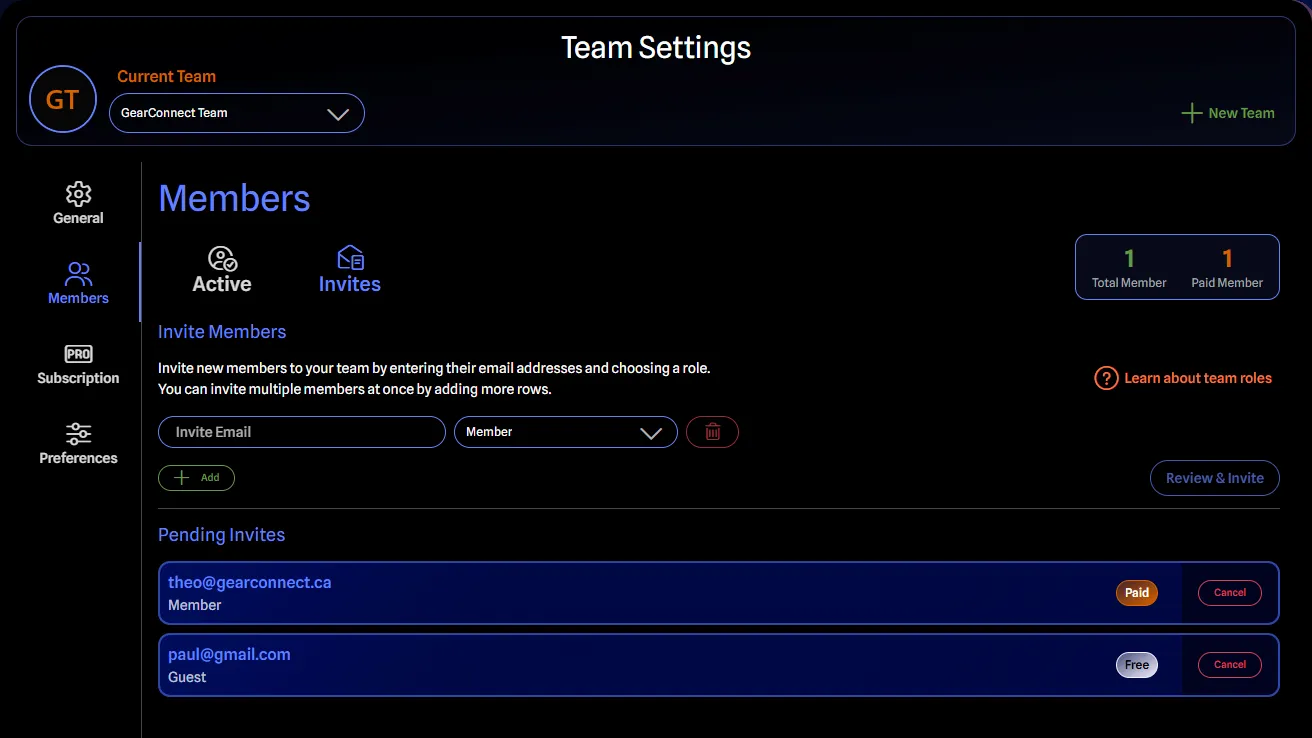
The Invites sub-tab allows you to send bulk invitations and view pending invites.
Sending Invites
The invite form allows you to invite multiple members at once.
Each invite row contains:
- Email: Address input with validation
- Role: Role selector (Admin, Billing Manager, Member, or Guest); Owner not available.
- Remove: If more than one row, a button is enabled to remove that row.
You can click the Add button to add more invite rows as needed.
Some notes on invitations:
- Cannot invite duplicate emails.
- Cannot invite existing team members (this includes secondary emails associated with their account as well).
- Billing Manager and Guest roles may be unavailable if their respective limits are reached.
Sending Invites:
- Fill in email addresses and select roles for each invite.
- Add additional rows if needed with the Add button.
- Click Review & Invite.
- Review billing confirmation (if inviting paid roles).
- Finally, click Send Invites to send the invitations.
Billing Review
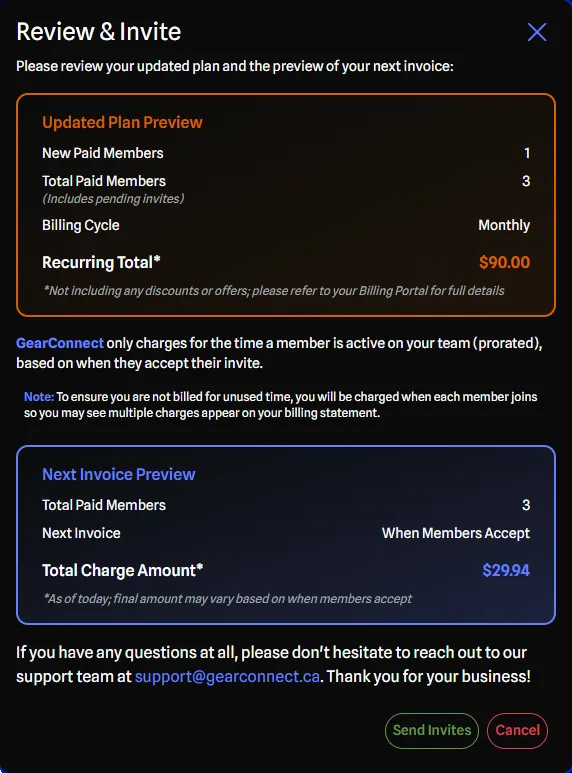
The Review & Invite dialog appears when you invite members with paid roles. The confirmation dialog displays the following details:
- Updated Plan Preview
- Shows how many new paid members you are adding
- Shows the total paid members (including pending invites)
- Shows your billing cycle and the new total cost (excluding discounts or credits)
- Represents what you can expect to start paying on a monthly or yearly basis
- Next Invoice Preview
- Shows the total paid members for the next invoice
- Shows when you can expect your next invoice
- Shows the total expected charge
- Shows any credits before and after the change, if applicable
- Note: This section may not appear if your Team is on a trial and you have not added a credit card, as you will not have an upcoming invoice yet
For invitations, the charge occurs when each invite is accepted, not when it's sent. Pending invites do not incur charges.
Pending Invites
Below the invite form, all pending invitations are displayed for your team. Each pending invite is shown as a card displaying:
- Email: Invitee’s email address
- Role: Role assigned in the invitation
- Paid Status: Badge indicating if the role is paid or non-paid
- Cancel button: Revoke the invitation
You can cancel an invite and revoke it immediately before it’s accepted by clicking Cancel. Because charges only occur when an invite is accepted, cancelling an invite has no billing impact.
Restricted Team
If the team is restricted (usually due to billing issues), then you won’t be able to send new invitations. A message will be shown explaining the restriction.
Learn more about Restricted Team State here.