

Subscription Tab
The Subscription tab in Team Settings displays billing information and provides access to manage your team subscription.
Access
- View: Only management roles (Owner, Admin, and Billing Manager) can access this tab.
- Non-management members see a message indicating they don’t have access to billing information.
User vs Team Subscriptions
To help understand the distinction between these two subscription types:
User Subscription:
- Personal subscription for your individual account
- Unlocks Pro features for you personally
- Managed in User Settings
- Does not include team features
Team Subscription:
- Subscription for a team you own or manage
- Based on the number of paid members
- Managed in Team Settings (this tab)
- Enables team collaboration features
Subscription Details
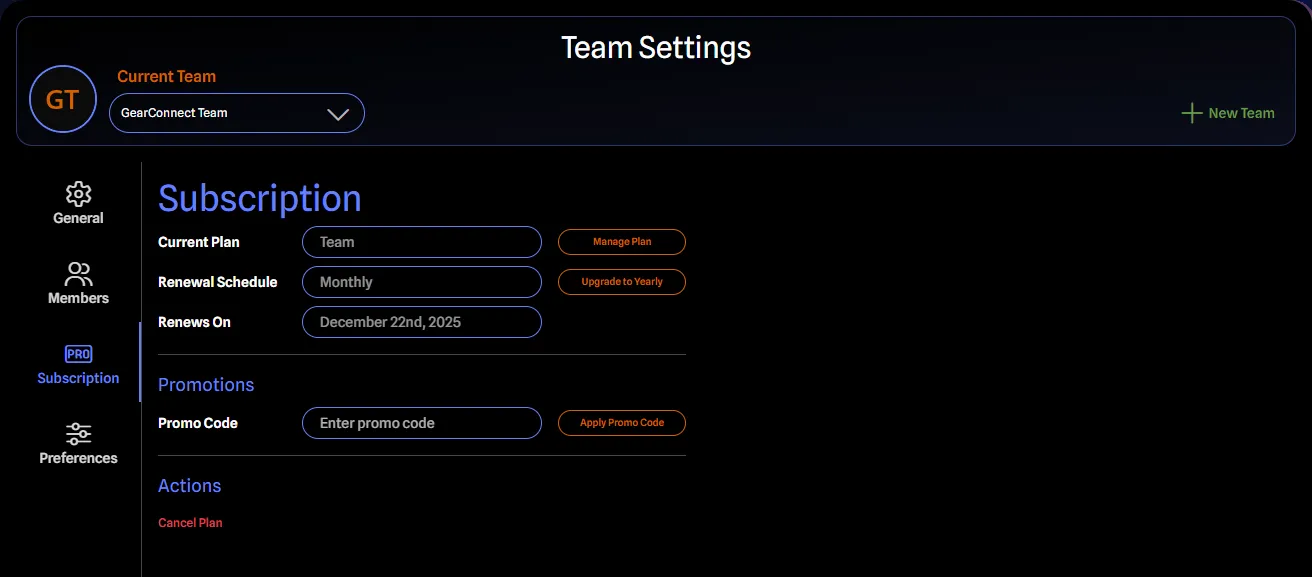
Under the Subscription tab, you can find information about your current subscription, or a prompt to upgrade/resolve a restricted team.
Assuming you are either on a trial or an active subscription, you will see the following information:
- Current Plan: The name of your current plan (Team). You can manage your subscription by clicking the Manage Plan button. This will take you to our payment processor, Stripe where you can manage your subscription.
- Renewal Schedule: The occurrence of your subscription renewal. This will be either monthly or yearly. If it's monthly, you will see a button that says Upgrade to Yearly.
Depending on your subscription status, you will then see one of the following:
- Trial Ends: If you are on a trial, you will see the date your trial ends and will change to an active subscription. This is the day you will be charged for your subscription.
- Renews On: If you are on an active subscription, you will see the date your subscription renews. This is the day you will be charged for your subscription.
- Valid Until: If you have canceled your subscription, you will see the date your subscription is valid until.
Promotions
You can apply promotions to a monthly plan from the Stripe checkout page by entering the promotion code in the Promotion Code field. In some cases, promotion codes may automatically be applied for you when signing up, if you are signing up during a promotion period.
If you have an existing subscription, you can add a promotion code from this section in Team Settings. You will see a field called Promo Code where you can enter the promotion code. Clicking the Apply Promo Code button will apply the promotion to your subscription if it is valid.
If you have an existing promotion applied, you will see the following fields in addition to the Promo Code field:
- Active Promo: The name of the promotion currently applied to your subscription.
- Promo Details: The details of the promotion currently applied to your subscription which includes the percentage discount and the date the promotion ends. For example: "50% until June 15th, 2027".
Actions
Under the actions section, you will have a button that says Cancel Plan. Clicking this button will take you to Stripe to confirm your cancellation.
If you are currently on a canceled plan but still within the grace period, you will see a button that says Renew Plan instead, which will take you to Stripe to re-activate your subscription.