

Teams
Introduction
Teams in GearConnect enable collaboration on projects and library items with your colleagues. With teams, you can:
- Share resources: Work together on projects and library items in real-time
- Control access: Use role-based permissions to manage who can view and edit content
- Collaborate efficiently: Invite members, assign roles, and work together on shared files
Key workflows include inviting team members, managing roles and permissions, and collaborating on shared projects and library items.
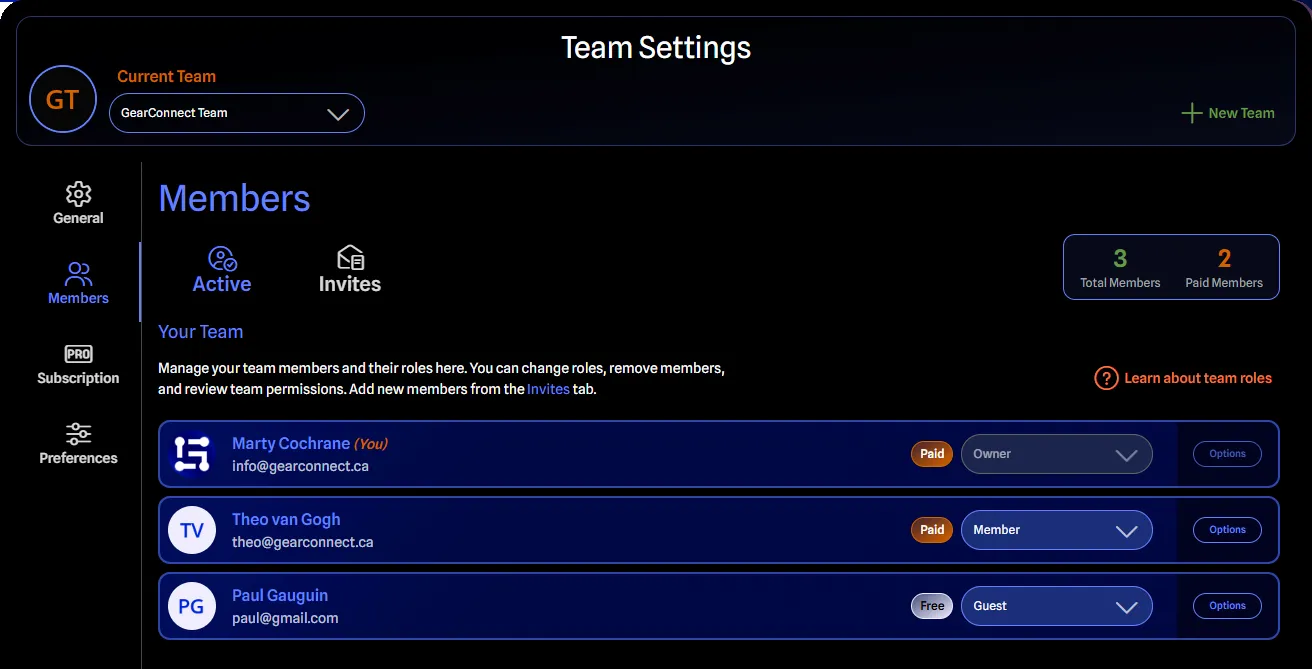
Creating a Team
You’ll need to make sure your email is verified before creating a team. After verification, create a team by:
- Click on the User Info Menu in the top right corner.
- Select Team Settings from the menu.
- Click the New Team button.
- Enter your team name and click OK.
Once created, you will be taken to the checkout page to set up your team’s subscription. If you do not complete the checkout, your team will be created in a restricted state until payment is made.
Creating a team automatically makes you the Owner with full control over team management. Teams require an active subscription to add paid members. For current pricing, visit our pricing page.
Team Settings
Team settings are organized into four tabs, each managing different aspects of your team:
- General Tab: Edit team name, picture, and view basic information
- Members Tab: Manage team members, roles, and invitations
- Subscription Tab: View and manage billing and subscription details
- Preferences Tab: Delete team and manage advanced settings
Access team settings by clicking on the User Info Menu in the top right corner and selecting Team Settings. You may then select the desired team if you belong to multiple teams at the top.
Members
Add Members
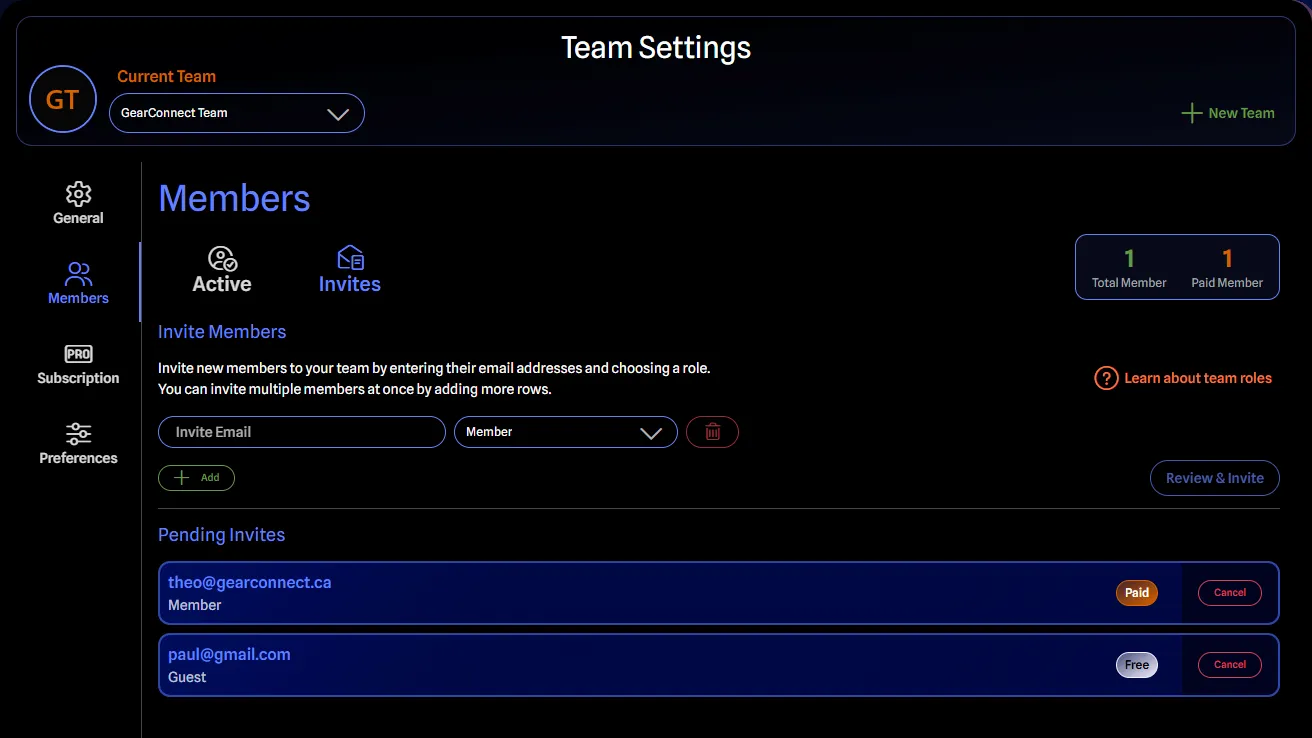
Invite team members by sending email invitations with assigned roles from the Members Tab in Team Settings. You can invite multiple members at once, and invitees will receive an email notification to accept or decline from their User Menu.
For detailed instructions on sending invites and managing pending invitations, see Sending Invites.
Removing Members
Management roles (Owner, Admin, and Billing Manager) can remove members from the Members Tab in Team Settings. Removed members lose access to team resources, and any prorated credit for unused time is applied to your team account.
For detailed instructions on removing members, see Remove Member.
Leave Team
Team members (except the Owner) can remove themselves from a team. When you leave, you lose access to all team projects and library items, and may lose Pro access if you’re not on another team with a paid role.
For detailed instructions on leaving a team, see Leave Team.
Pending Invites
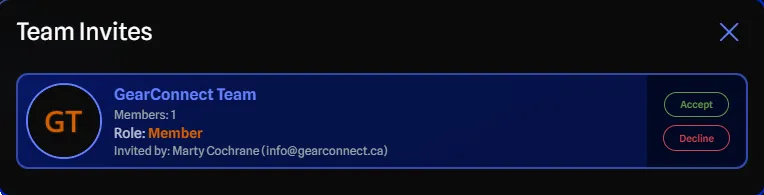
When you receive a team invitation, a ping indicator appears in the User Info menu:
- Click the User Info menu in the top right corner.
- Select Invites from the menu.
- Review your pending invitations.
- Click Accept or Decline for each invite.
Once you accept an invitation, you’ll immediately have access to the team’s projects and libraries based on your assigned role.
Roles & Permissions
GearConnect teams use a role-based permission system with five distinct roles:
At a high level, use this guide to select appropriate roles for your team members:
| If they need to… | Assign role… |
|---|---|
| Manage everything including deletion | Owner |
| Manage team and create/edit content | Admin |
| Handle billing without content access | Billing Manager |
| Create and edit content only | Member |
| View content without editing | Guest |
For a comprehensive breakdown of roles and specific permissions, see the Roles and Permissions page.
Change Roles
Management roles can change member roles from the Members Tab in Team Settings. Changing to a paid role triggers an immediate prorated charge, while changing to a non-paid role generates a credit for unused time.
For detailed instructions on changing roles, restrictions, and billing impacts, see Role Changes.
Transfer Ownership
The Owner can transfer team ownership to an Admin from the Members Tab in Team Settings. When transferred, the new Owner gains full team control, and you become an Admin.
For detailed instructions on transferring ownership, see Transfer Ownership.
Subscription
Team subscriptions are based on the number of paid members (Owner, Admin, Member roles). Non-paid roles (Billing Manager, Guest) do not count toward billing.
Subscription Details:
- Guest limits: 1 Guest per active paid member
- Billing cycles: Monthly or Yearly options available
- Flexible billing: Automatic prorated charges and credits when members are added or removed
- Pricing: Visit our pricing page for current pricing information
Flexible Member Billing
GearConnect uses a flexible billing model that automatically adjusts charges based on when members join or leave your Team. This ensures you only pay for the time members are actually on your Team and doesn’t overcharge you for unused time.
Key concepts:
- A paid member joining triggers immediate prorated charges for the remaining billing cycle
- Likewise, changing a non-paid member to a paid member triggers immediate prorated charges
- Removing paid members generates credits for unused time
- Likewise, changing a paid member to a non-paid member generates credits
- Credits automatically apply to your next invoice
- Billing adjustments usually take under a minute to process and reflect in your account
For example, adding a member halfway through a month would only charge you for half that month. Likewise, removing an existing member half way through the month would credit you back half a month of unused time, resulting in your next invoice being lower.
Add Team members for just a week or month and only pay for the time they are actually active on your Team. Scale your Team up and down as project needs change without overpaying for unused time.
To learn more about flexible billing, with examples and real-world scenarios, see the Flexible Member Billing page.
Fixed Member Billing
We also offer fixed pricing if you’d rather have consistent monthly or yearly charges without proration. Instead of billing based on active time, you pay a set fee based on the maximum number of paid members you would like to have.
This helps larger teams budget more easily without worrying about fluctuating charges, as you know exactly what you’ll be paying each billing cycle.
If you would prefer the simplicity of predictable billing, please contact us to activate fixed pricing for your Team.
To learn more about fixed billing options see the Fixed Member Billing page.
Billing Portal
The billing portal is where you can manage your payment information. You will leave the app and be redirected to a page from our payment processor, Stripe, for secure and reliable handle of your billing information.
Management roles (Owner, Admin, Billing Manager) can access the billing portal to:
- Update payment methods
- View billing history and invoices
- Change subscription cycle (Monthly/Yearly)
Access the billing portal from the Subscription Tab and click on Manage Plan.
Pro Access
Being a member of a Team with a paid role (Owner, Admin, Member) automatically grants you Pro access to all GearConnect Pro features. This access is maintained as long as you remain in a paid role on at least one active team.
For complete details about gaining, maintaining, and losing Pro access through teams, see Team Membership.
Restricted Mode
Teams can become restricted due to billing issues or incomplete checkout. When restricted, teams are displayed with red styling and visual indicators. Restrictions prevent inviting members, changing roles, and editing projects and library items, but existing content remains accessible in read-only mode.
For complete details about when teams become restricted, limitations, and how to resolve restrictions, see Restricted Mode.
Local Mode Considerations
When working with teams in Local Mode, please keep in mind each member may have local copies of team data:
- Local projects are saved on each user’s computer
- When a team member deletes a project from the team, it may still exist on other members’ computers who have it saved locally
- Other members can choose to re-sync deleted projects if they still have them locally
- This behavior only applies to local mode projects, not online-only projects
For complete details on how local files behave with teams, see the Local Mode documentation.
Delete Team
The Owner can permanently delete a team from the Preferences Tab in Team Settings. This action permanently removes all team projects, library items, and member access.
For detailed requirements, warnings, and step-by-step deletion instructions, see Delete Team.