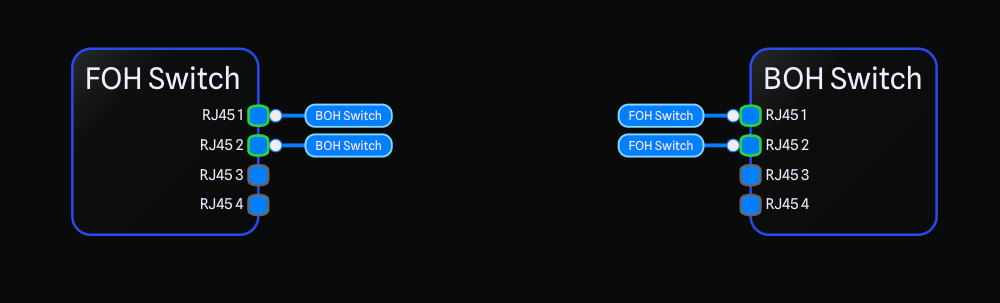
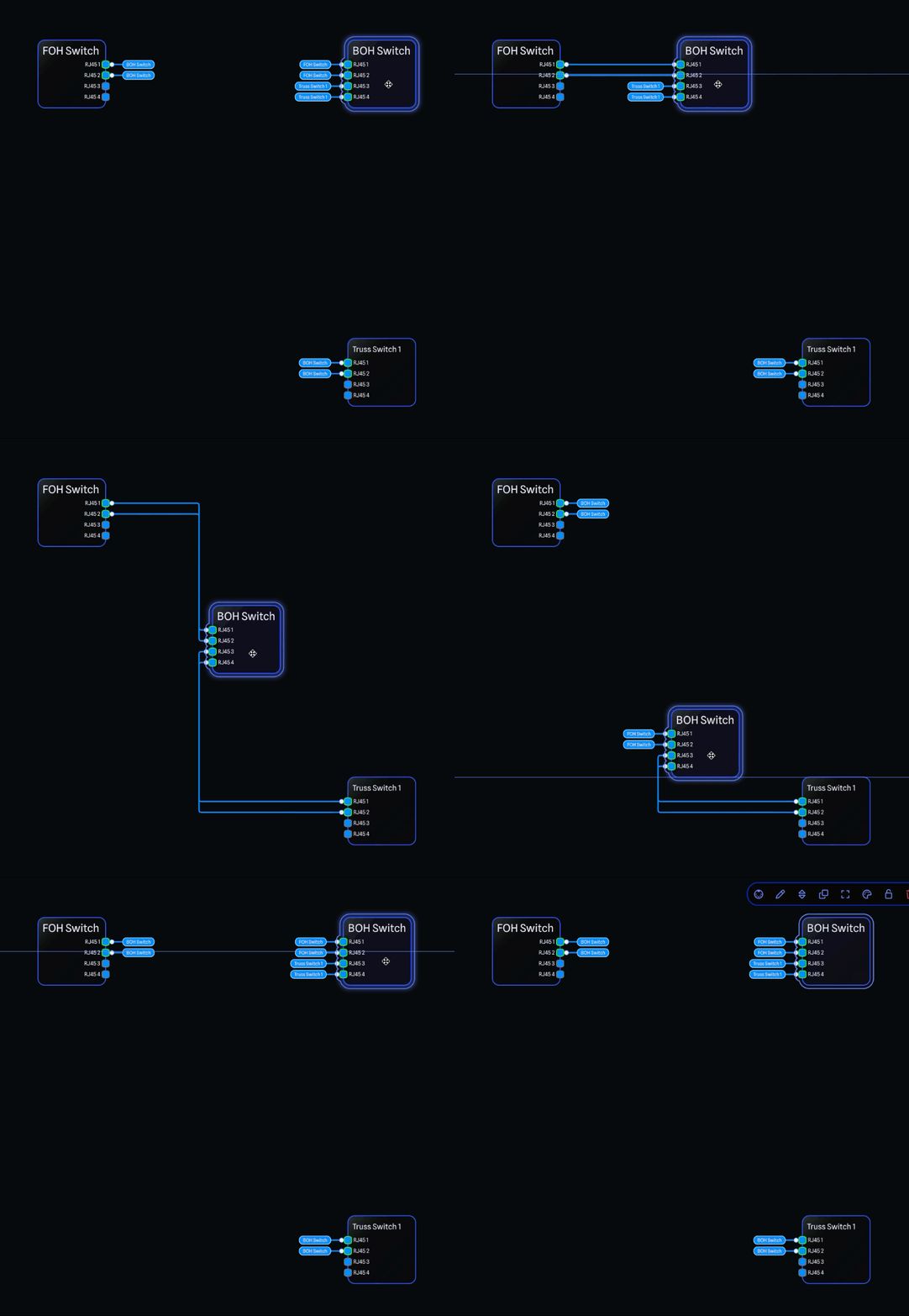
First shown off at EXPO-SCENE this year, Connection Tags are a new way to cut down on visual clutter in large drawings. Instead of drawing the full line between two distant pieces of gear, a tagged connection appears as two short stubs, one at each end, with a navigation label that tells you what the connection links to. And Connection Tags come packed with helpful features beyond just the tidier look too!
Check out our video on the new feature, or read on below!Connections come in three new modes. Auto Tag switches between a full line and tag stubs based on how far apart the connected gear is, so connections only tag themselves once the gear is far enough away to benefit from it, and this happens automatically for you as you move gear around the drawing!
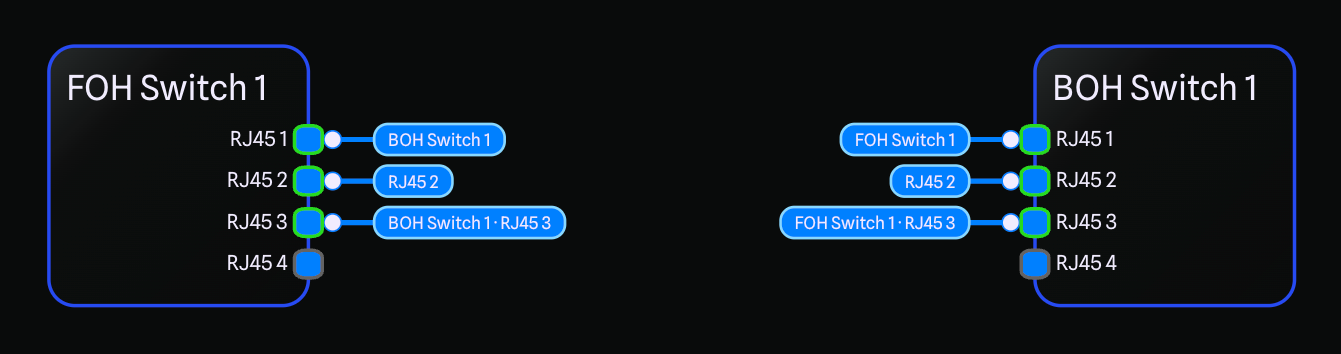
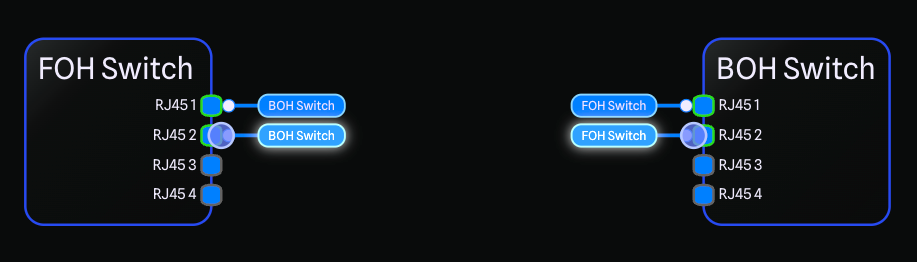
Show As Tag always shows the connection as tag stubs no matter the distance, and Show Full Connection always shows the full line. You can set the preference by right-clicking a connection, from the Selection Toolbar when one or more connections are selected, or from the Edit menu under Connections.You can also control what text a tag displays. The Tag Label option gives you three choices. Gear Only is the default and shows just the name of the gear on the other end. Gear and Port shows both the gear name and the connected port label together, for example FOH · RJ45 1. Port Only shows just the connected port label, for example RJ45 1. This makes it easy to tell at a glance not only which device a connection runs to, but which specific port it lands on. Just like the tag mode, you can set the label by right-clicking a connection or from the Edit menu under Connections, with single and multi-select supported so you can update many connections at once.Connection Tags are also a quick way to get around a big drawing. Clicking a tag label jumps the view straight to the other end of the connection, and hovering a stub highlights the matching stub at the far end so you can always find where a connection goes.
As an added bonus, to improve performance, when a connection is tagged, the line no longer calculates its Smart Connection Routing, drastically speeding up path finding when moving gear around the drawing.
You can fine tune tag behaviour in Project Settings, including the Default Tag Mode and Default Tag Label for new connections, whether tag labels are always pinned or only appear on hover, the distance threshold that triggers Auto mode, and the length of the tag lines.
Connection Tags are a Pro feature, and when a new project is created, Pro users will have connections set to Auto Tag by default, while Starter users will have connections set to Show Full Connection by default.
If you aren't already a Pro member, you can try Connection Tags out with a free month of Pro, activated automatically when you sign up! Try Tags today at beta-app.gearconnect.ca.
Default Library Updates
Thank you to everyone who has requested and submitted library items!
Blackmagic Design
Blackmagic Cloud Store
Blackmagic Cloud Pod
Blackmagic Cloud Store Ultra 48TB
Blackmagic Cloud Store Ultra 24TB
Blackmagic Cloud Store Max 48TB
Blackmagic Cloud Store Max 24TB
Blackmagic Cloud Store Mini 16TB
Blackmagic Cloud Store Mini 8TB
Blackmagic SDI Expander 8x12G
Blackmagic Studio Fiber Converter
Blackmagic Camera Fiber Converter
HyperDeck ISO Recorder 100G
Teranex Mini IP Video 12G
Teranex Mini Quad SDI to 12G-SDI
Teranex Mini 12G-SDI to Quad SDI
Teranex Mini SDI Distribution 12G
Teranex Mini HDMI to Optical 12G
Teranex Mini Optical to HDMI 12G
Teranex Mini Audio to SDI 12G
Teranex Mini SDI to Audio 12G
Teranex Mini Analog to SDI 12G
Teranex Mini SDI to Analog 12G
Teranex Mini HDMI to SDI 12G
Teranex Mini SDI to HDMI 12G
Crown
CT 8150
CT 875
CT 4150
CT 475
CTD-8125
CTD-4125
CTD-2125
DirectOut
ANDIAMO
Hive Media Control
Pluto 2TB
Pluto 1TB
Osmia 2TB
Osmia 1TB
Minima 1TB
Minima 500GB
iConnectivity
mioXL
mioXM
KLANG
KLANG:konductor
KLANG:vokal
Luminex
GigaCore 30i
QSC
LS218
LS118
LA112
LA108
Rupert Neve Designs
RMP-D8
Improvements
The Hover Card no longer twitches between the left and right side of the drawing when your cursor sits near the center. Once it settles on a side, the card now stays there until your cursor moves well past the middle of the drawing.
Zoom to Fit now accounts for the drawing toolbar when framing tall gear, so they are no longer tucked behind it.
Jumping to a gear item that is too large to fit within your current camera size now zooms the drawing out to fit the gear cleanly.
Local Mode now re-activates faster after a sync, dropping the delay from 5 seconds down to 1.5 seconds.
The drawing integrity check can now repair mismatched connections. When a connection's endpoints have drifted out of sync, choosing Repair reconnects it to the correct ports instead of removing it from the drawing.
Bug Fixes
Fixed not being able to use CTRL + Click to pan around the drawing.
Fixed clicking into the drawing not clearing active text boxes such as the grid size and search fields.
Fixed the Connection Hover Card showing a connection's own port as the connected port in some situations.
Fixed connections not being hoverable or selectable immediately after a bulk duplicate.
Fixed being able to middle mouse pan around in the Library Editor preview.