

Alignment and Distribution
The Alignment Menu provides tools to align and distribute multiple selected items on your drawing.
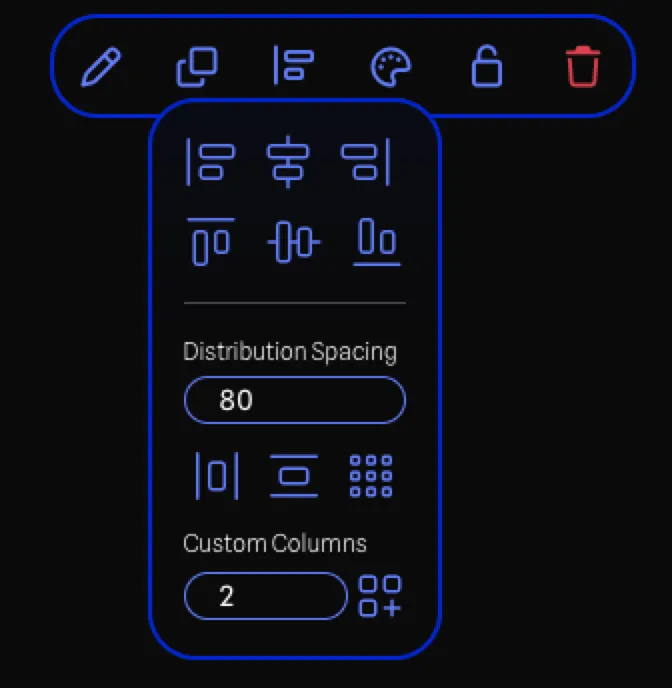
Accessing the Alignment Menu
Section titled “Accessing the Alignment Menu”You can access the Alignment Menu in the following ways:
- Draw Toolbar - Click the Align Items button when multiple items are selected.
- Selection Toolbar - Click the Align Items button when multiple items are selected.
Alignment Options
Section titled “Alignment Options”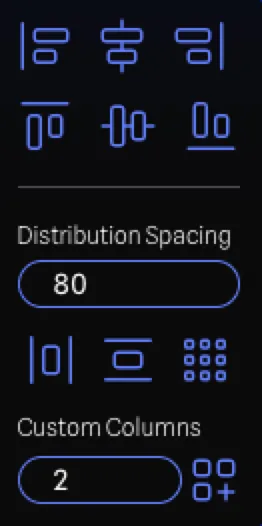
The alignment options allow you to align selected items to a common edge or center:
Horizontal Alignment
Section titled “Horizontal Alignment”- Align Left - Align all selected items to the leftmost edge.
- Align Center - Align all selected items to the horizontal center.
- Align Right - Align all selected items to the rightmost edge.
Vertical Alignment
Section titled “Vertical Alignment”- Align Top - Align all selected items to the topmost edge.
- Align Middle - Align all selected items to the vertical center.
- Align Bottom - Align all selected items to the bottommost edge.
Distribution Options
Section titled “Distribution Options”Distribution evenly spaces selected items based on a layout pattern:
Distribution Presets
Section titled “Distribution Presets”- Distribute Horizontally - Distribute items in a single row.
- Distribute Vertically - Distribute items in a single column.
- Auto Grid - Distribute items in a grid layout where the number of columns is automatically calculated to create a roughly square arrangement. For example, 9 items would be arranged in a 3×3 grid, while 12 items would be arranged in a 4×3 grid. Use Custom Grid below if you need a specific number of columns.
Distribution Spacing
Section titled “Distribution Spacing”The Distribution Spacing input controls the space (in pixels) between items when using any distribution option. This value is remembered between uses.
Custom Grid
Section titled “Custom Grid”For more control over grid layouts, you can specify:
- Custom Columns - Set the exact number of columns for the grid; this value is remembered between uses.
- Apply Custom Grid - Applies the distribution with your specified column count and spacing.