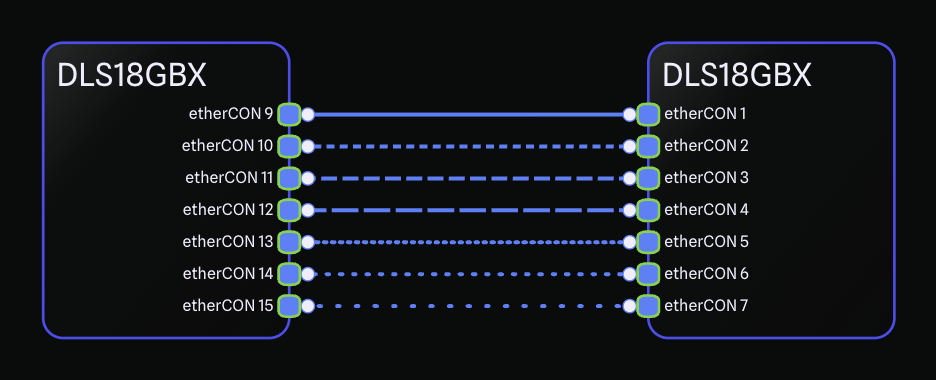
You can now change the visual appearance of any connection line on your drawing. Choose from seven styles: Solid, Short Dash, Medium Dash, Long Dash, Short Dotted, Medium Dotted, and Long Dotted. Whether you want to visually distinguish signal paths, indicate temporary connections, or simply match the conventions your team uses on paper, line styles give you full control over how your connections look.
The default setting is Auto, which works the same way as before - connections render as solid lines unless they require an adapter or have a signal warning, in which case they are automatically dashed. When you manually set a line style, your choice always takes precedence over the automatic dashing.
There are several ways to change line styles. Such as right-clicking any connection and selecting Edit Line Style, or using the Selection Toolbar when one or more connections are selected.
Improvements
Hover cards now reposition dynamically based on your mouse location. If your cursor is on the right side of the drawing, the hover card appears to the left, and vice versa. This prevents hover cards from overlapping your cursor position, making it difficult to see the drawing.