

Port Manager
The Port Manager is accessible from the Manager Menu at the top right of the app.
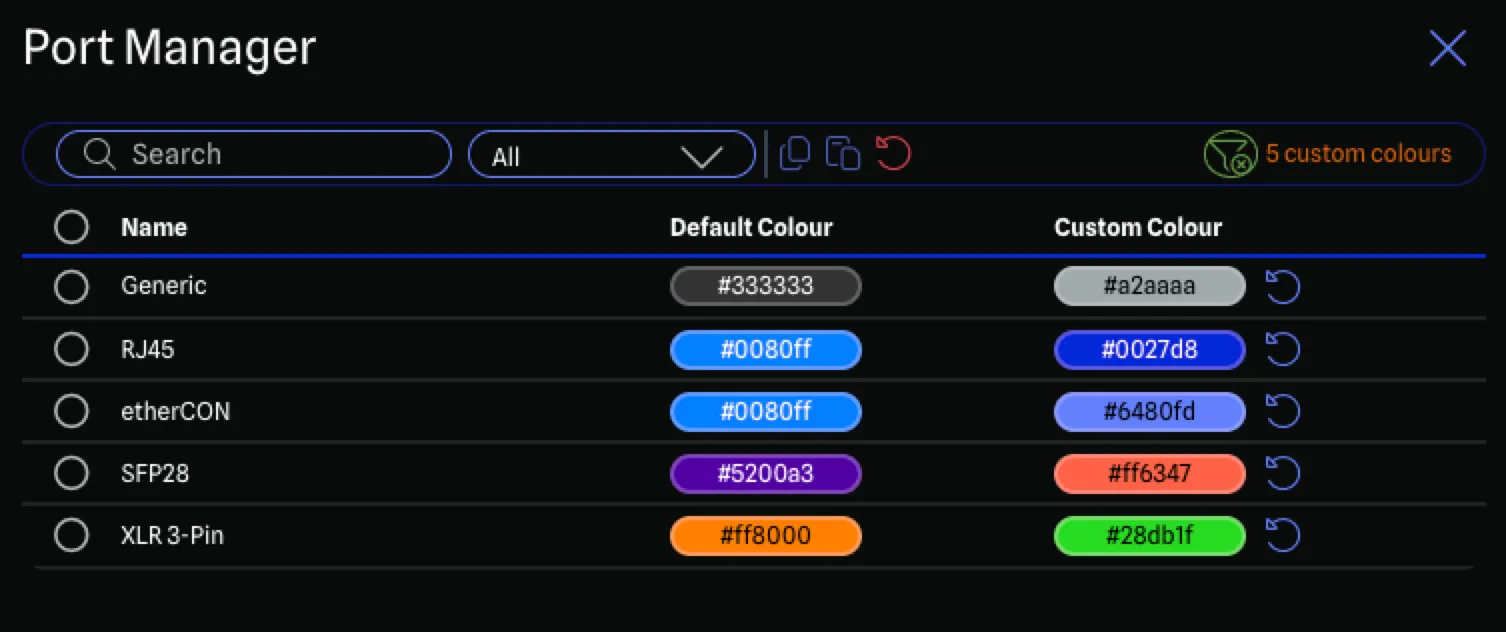
This manager allows you to customize the colours used for different connectors in your project. Each connector (such as HDMI, XLR, RJ45, etc.) has a default colour that helps identify it at a glance. You can override these defaults with custom colours that better suit your workflow or project requirements.
Connector Properties
Each connector in the manager shows the following:
- Name: The name of the connector (e.g., HDMI, XLR 3-Pin, RJ45).
- Default Colour: The system default colour for this connector. This is read-only and shows what colour would be used if no custom colour is set.
- Custom Colour: Your project-specific override colour. Click on this swatch to open a colour picker and choose a custom colour.
- Reset Button: Removes your custom colour override and reverts the connector back to using the default colour. This button is only enabled when a custom colour has been set.
Filtering Connectors
With several connectors available, the manager provides several ways to find the connector you want to customize:
Search
Use the search box at the top of the manager to filter connectors by name.
Category Tabs
Click on the category tabs to filter connectors by their category. For a full list of categories and their connectors, see the Port Colours reference page.
Changing Connector Colours
To change the colour for a connector:
- Find the connector you want to customize using the search or category filters.
- Click on the colour swatch in the Custom column to open the colour picker.
- Select your desired colour using the colour picker.
- Click Save (or double-click on the colour) to apply it. All ports using that connector in your drawing will update immediately.
Colour Picker
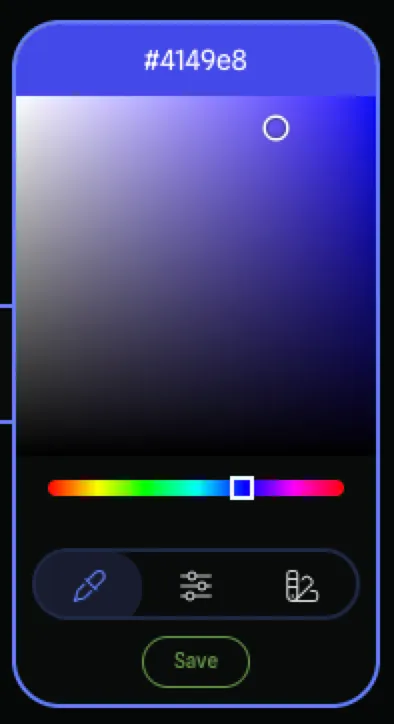
The colour picker provides several ways to choose a colour:
Spectrum
The Spectrum view shows a colour gradient that you can click or drag to select any colour. Use this when you need a specific colour that isn’t in the palette.
Tune
The Tune view provides sliders for fine-tuning individual colour channels (red, green, blue). Use this for precise colour adjustments.
Palette
The Palette view shows a curated set of common colours, including the app’s brand colours and other useful defaults. Click a palette colour to select it.
Hex Input
You can also type a hex colour code directly into the text input above the picker.
Saving Your Selection
After selecting a colour, click the Save button to apply it. You can also double-click on the colour picker area (spectrum, sliders, or palette) to save and close the picker in one action.
Show Custom Only
The Custom Only toggle in the toolbar filters the table to show only connectors that have a custom colour override. This is useful for reviewing and managing your customizations. This filter persists between sessions.
Selecting Connectors
Each connector row has a checkbox on the left side. You can select individual connectors by clicking their checkbox, or select all visible connectors using the checkbox in the table header. You can also hold Shift and click to select a range of connectors.
Selection is used for copy and paste operations (see below).
Copying & Pasting Colours
You can copy colours from selected connectors and paste them onto other connectors:
- Select the connectors whose colours you want to copy using the checkboxes.
- Click the Copy button in the toolbar.
- Select the connectors you want to apply the copied colours to.
- Click the Paste button in the toolbar.
Colours are applied in order - the first copied colour goes to the first selected connector, the second to the second, and so on. If there are more selected connectors than copied colours, the copied colours wrap around and repeat. For example, copying one colour and pasting onto five connectors will apply that colour to all five.
The clipboard persists after pasting, so you can select a new set of connectors and paste again without needing to copy again.
Resetting Colours
Resetting a Single Connector
To reset a single connector back to its default colour, click the Reset button (circular arrow icon) next to the connector. This removes your custom colour override.
Resetting All Connectors
To reset all connector colours back to their defaults:
- Click the Reset All button in the toolbar.
- Confirm the action in the dialog that appears.