Fixed an issue where reusing a VLAN ID in the same sync would lose the chosen ID. For example, deleting VLAN 101 and recreating it with the same ID now keeps 101 instead of bumping it to the next free number when synced.
Fixed an issue where reusing a cable inventory SKU in the same sync would rename the new entry. Deleting a cable with SKU 1 and recreating one with SKU 1 now keeps the chosen SKU instead of renaming it to "1 (1)" when synced. Existing automatic renumbering for true duplicates within the same file is preserved.
Fixed an issue where connections involving generic ports did not always carry accurate informational details. Additional data such as adapters and VLAN warnings now appear correctly on these connections, while generic ports continue to allow full unrestricted compatibility.
Fixed an issue where generic ports were incorrectly enforcing port direction during sync. Connecting two same-direction generic ports (for example, generic in to generic in) now works as expected instead of failing during sync.
Faster library search and auto-sort toggle in the Library Editor
With the GearConnect library now spanning thousands of items, we have made significant performance improvements to keep search feeling snappy. Typing in the search bar of the Library Browser and My Gear no longer lags, and results appear immediately after you are done typing.
Auto-Sort Toggle in the Library Editor
A new auto-sort toggle has been added to the Port Config pane in the Library Editor, giving you control over whether ports are automatically sorted as you build or tweak a library item. The toggle, along with the existing regenerate preview setting, now remembers your preferences so you no longer have to re-set them each time you open the Library Editor.
Default Library Updates
Thank you to everyone who has submitted and requested library items! We have added over 230 items to the library in the last few weeks alone thanks to all of you, so this list is larger than usual:
Adamson
S7
S7p
S10
S10n
S10p
S118
S119
IS7
IS7c
IS7p
IS7px
IS5c
IS10
IS10n
IS10p
IS118
IS119
IS213
IS219
CS7
CS7p
CS10
CS10n
CS10p
CS118
CS119
VGs
VGt
E12
E15
E119
E219
M10
M12
M15
M212
MG10
Audio Technica
BPHS2
Barco
SP2K-7S
SP2K-9S
SP2K-11S
SP2K-15S
SP2K-20C
SP2K-25C
SP4K-12C
SP4K-13CHC
SP4K-15C
SP4K-20C
SP4K-25C
SP4K-27BHC
SP4K-35B
SP4K-40B
SP4K-55B
Behringer
HA400
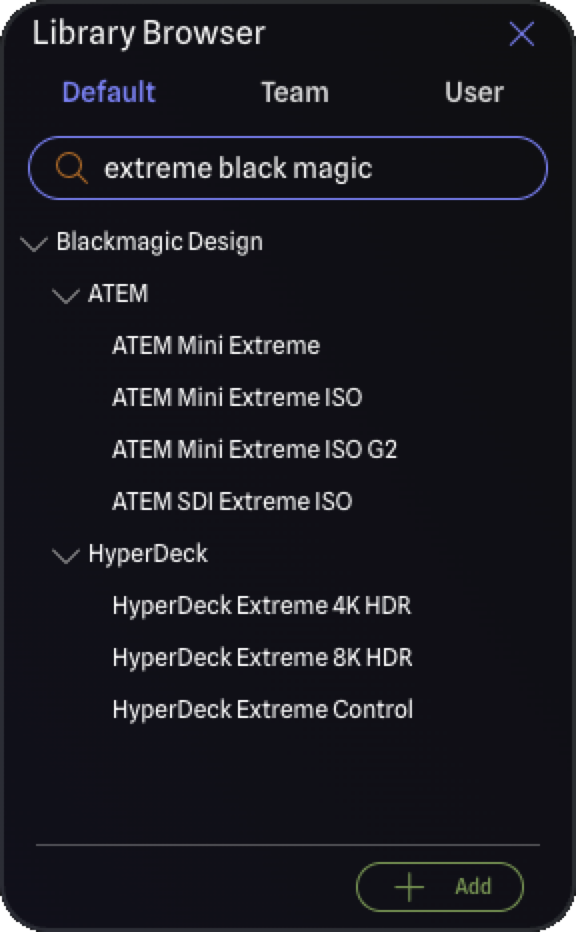
Blackmagic Design
Teranex Audio to SDI
Blustream
CUSTOM PRO-HUB16
CUSTOMPRO-HUB
BSS Audio
BLU-100
BLU-120
BLU-160
BLU-326DA (BLU-326)
BLU-806DA (BLU-806)
BLU-10BLU
BLU-BOB2
EC-4B
EC-8BV
ChamSys
GeNetix GD4D
GeNetix GD4IP
GeNetix GD10
GeNetix GN2
GeNetix GN4IP
GeNetix GN5
GeNetix GN8
GeNetix GN10
GeNetix GN10P
GeNetix GN10R
GeNetix GS5D
GeNetix GS5IP
GeNetix GS8
GeNetix GW2I
GeNetix GW2O
Clear-Com
HXII-BP-4K-X4
HXII-BP-4K-X5
Crest Audio
Tactus .FOH
Tactus .Stage
D&B Audiotechnik
5D
5DM
D6
10D
25D
40D
D25
R70 Ethernet to CAN interface
DiGiCo
Orange Box
DirectOut
EXBOX.SG
SG.MADI
Dolby
Dolby Cinema Processor CP950
Dolby Atmos Cinema Processor CP950A
Hollyland
Wireless Video RX
Wireless Video TX
LumenRadio
Aurora
Galileo MAX
Galileo RX
Galileo TX
Luna
MoonLite²
Stardust
MA Lighting
grandMA3 onPC 2Port Node 2k PoE
grandMA3 onPC 4Port Node 4k PoE
grandMA3 onPC 8Port Node 4k PoE
grandMA3 onPC DMX-key
grandMA3 onPC DMX-key starter
grandMA3 onPC rack-unit
Meyer Sound
900-LFC
1100-LFC
1800-LFC
2100-LFC
Midas
DL32
MultiDyne
SilverBack V Camera Unit
SilverBack V Dual Camera Base Station
V4
V6
VT
VX
VF-9000
OBSBot
Obsbot Tail 2
Pathway
PWPP RM P4 RJ45EC
PWPP RM P4 TERM
PWPP RM P4 XLR5F
PWPP RM P8 RJ45EC
PWPP RM P8 TERM
PWPP RM P8 XLR5F
PWPP RM P8 XLRTERM
PWPP WM P1 XLR5F
PWPP WM P1 XLR5M
PWPP WM P2 XLR5F
PWPP WM P2 XLR5M
PWPP WM P2 XLR5MF
Sennheiser
AWM UHF (470 – 694 MHZ)
EK 100 G4
EM 300-500 G4
EM2 Dante
SK 100 G4
SKM 2000
SKM 6000
SKM 9000
SKM AVX
SKM AVX 835
SKP 2000XP
XSW-D XLR Female TX
Waves
DiGiGrid D
DiGiGrid DGS-XL
DiGiGrid DLI
DiGiGrid DLS
DiGiGrid IOC
DiGiGrid IOS-XL
DiGiGrid IOX
DiGiGrid M
DiGiGrid MGB
DiGiGrid MGO
DiGiGrid Q
Bug Fixes
Fixed a crash that could occur when adding lighting fixtures that were missing DMX profiles or amplifiers that were missing power options. These fields now display NA in the General Settings Pane and are no longer editable when not applicable.
Fixed a sync error that could occur after restoring a previous version of a project. In some cases, restoring from version history would leave stale connection data on ports, causing a "duplicate connection" error when the project synced with the server. Connections are now cleaned up and revalidated during both file imports and version restores, preventing this issue.
Fixed sync errors in regards to VLAN and Cable Inventory changes.
If a newly created VLAN used an ID that was still held by a stale server-side VLAN, the sync would fail with an error. Likewise, the same error could occur if trying to change a VLAN ID to one that already existed on the server. VLANs with conflicting IDs are now automatically remapped to the next available ID, and a notification lets you know if any were remapped.
If a newly created cable inventory used a SKU that was still held by a stale server-side cable, the sync would fail with an error. Likewise, the same error could occur if trying to change a SKU to one that already existed on the server. Cables with conflicting SKUs automatically rename themselves, and a notification lets you know if any where renamed.
Fixed promo codes showing a generic error message when used by existing customers. Promo codes restricted to first-time customers, or codes that cannot be applied to your current subscription, now display a clear and specific error message instead.
You can now change the visual appearance of any connection line on your drawing. Choose from seven styles: Solid, Short Dash, Medium Dash, Long Dash, Short Dotted, Medium Dotted, and Long Dotted. Whether you want to visually distinguish signal paths, indicate temporary connections, or simply match the conventions your team uses on paper, line styles give you full control over how your connections look.
The default setting is Auto, which works the same way as before - connections render as solid lines unless they require an adapter or have a signal warning, in which case they are automatically dashed. When you manually set a line style, your choice always takes precedence over the automatic dashing.
There are several ways to change line styles. Such as right-clicking any connection and selecting Edit Line Style, or using the Selection Toolbar when one or more connections are selected.
Improvements
Hover cards now reposition dynamically based on your mouse location. If your cursor is on the right side of the drawing, the hover card appears to the left, and vice versa. This prevents hover cards from overlapping your cursor position, making it difficult to see the drawing.
Swap gear modes, replace library items, and update expansion cards
Accessible from the right click menu and General Settings, you can now toggle gear between Detail Mode and Standard Mode without removing and re-adding it. Detail Mode displays ports along the left and right sides, which is great for switches or consoles with many different connectors. Standard Mode places ports along the top and bottom, better suited for simple devices like speakers or lighting fixtures.
This feature requires Local Mode to be enabled.
Replace Library Items
You can now swap out a piece of gear in your drawing for a different library item without having to remove and re-add it manually. Right-click any gear on the drawing and select Change Library Item to open the Library Browser, pick a replacement, and GearConnect will handle the rest. This feature requires Local Mode to be enabled.
Change Expansion Cards
Along with replacing library items, you can now change the expansion card configuration of gear directly in the drawing. Right-click any gear that supports expansion cards and select Change Expansion Cards. The expansion card picker opens pre-populated with the current configuration, make your changes, and the gear is rebuilt with the updated cards.
This feature also requires Local Mode.
Real Time Connection Re-Mapping
When you use one of these features, GearConnect automatically remaps your existing connections to matching ports on the updated gear by trying to find the best match between the old and new ports. A notification summarizes how many connections were remapped, and any connections that couldn't find a match are removed.
Using GearConnect's real time port validation, it will attempt to match ports maintaining the old ports as close as possible; across expansion cards, connectors, signal types, and more. If it can't find a clean match, it will attempt to find a compatible port you can use with an adapter. And of course, if the result is not what you expected, you can always undo the replacement or move connections as needed.
Note that customizations to the ports themselves will be reset when using these features as it uses the library item to determine the updated port configuration.
Default Library Updates
Thank you to everyone who has submitted library items!
Allen & Heath
CC-10
GPIO
Behringer
MX882
ChamSys
Compact Connect
Compact Mini Connect
Compact Wing
DIN
MQ50
MQ70
Rack
Chauvet DJ
SlimPAR Pro Q USB
Chauvet Pro
Net X-II
D&B Audiotechnik
DS10
GearConnect Generic Items
Audio Combiner Active/Passive
Audio Splitter
Audio Switcher 40K
Glensound
AoIP22
Key Digital
KD-CX800
Penn Elcom
1U Rack Panels 16 x BNC
Shure
SLXD24D-G58
Improvements
Tightened up spacing in menu items, for a more compact design.
Added a Gear submenu to the Edit menu with Swap Detail/Standard Mode, Change Library Item, and Change Expansion Cards actions.
Project validation improvements:
It now runs automatically after every save.
Validation can attempt to repair items rather than just removing them by replacing gear with fresh library items and remapping their connections. In cases where the original gear cannot be resolved, a generic item with a matching port count may be used as a fallback.
You can no longer cancel validation.
Significant improvements to the validation pipeline, catching and handling dozens of additional cases for further reliability.
Local Mode syncing improvements:
Reduced network traffic during Local Mode syncing for better performance and faster syncing.
Gear Groups are now more reliably tracked during syncing.
Connections and ports now wait to clean up old items until all connections and ports have been updated on the server to prevent the sync from getting stuck in rare edges cases where it tries to update a previously deleted item.
You can now bulk edit cable inventory SKUs, with automatic suffixing for duplicates.
Duplicate VLAN Ids and duplicate cable inventory SKUs are now automatically relabeled to avoid conflicts.
Improved resilience when upgrading older project data and importing projects.
Importing projects now continue by default instead of aborting, as any import errors are now handled via the improved project validation.
As such, the checkbox has been renamed to "Abort import on errors" and is off by default
Importing a new project or copying an existing project now has a preprocessing step, to preemptively prevent any possible import conflicts.
Bug Fixes
Fixed being able to connect a connection to the gap between expansion card ports.
Fixed a crash that could occur when gear was being resized and port data could not be loaded.
Fixed connections sometimes getting stuck in the wrong gear group.
Fixed duplicate VLAN IDs sometimes not updating correctly.
Fixed the Undo Stack not working after importing a file.
Fixed an issue where syncing could fail if a switch port was missing a VLAN, such as when opening an older file where the VLAN had since been removed.
Fixed importing files offline and then syncing to the server causing sync to fail in some situations.
Fixed ports no longer being created if the gear itself failed to be added to the drawing.
Fixed archived expansion cards showing up in the dropdown when selecting cards.