

Drawing Settings
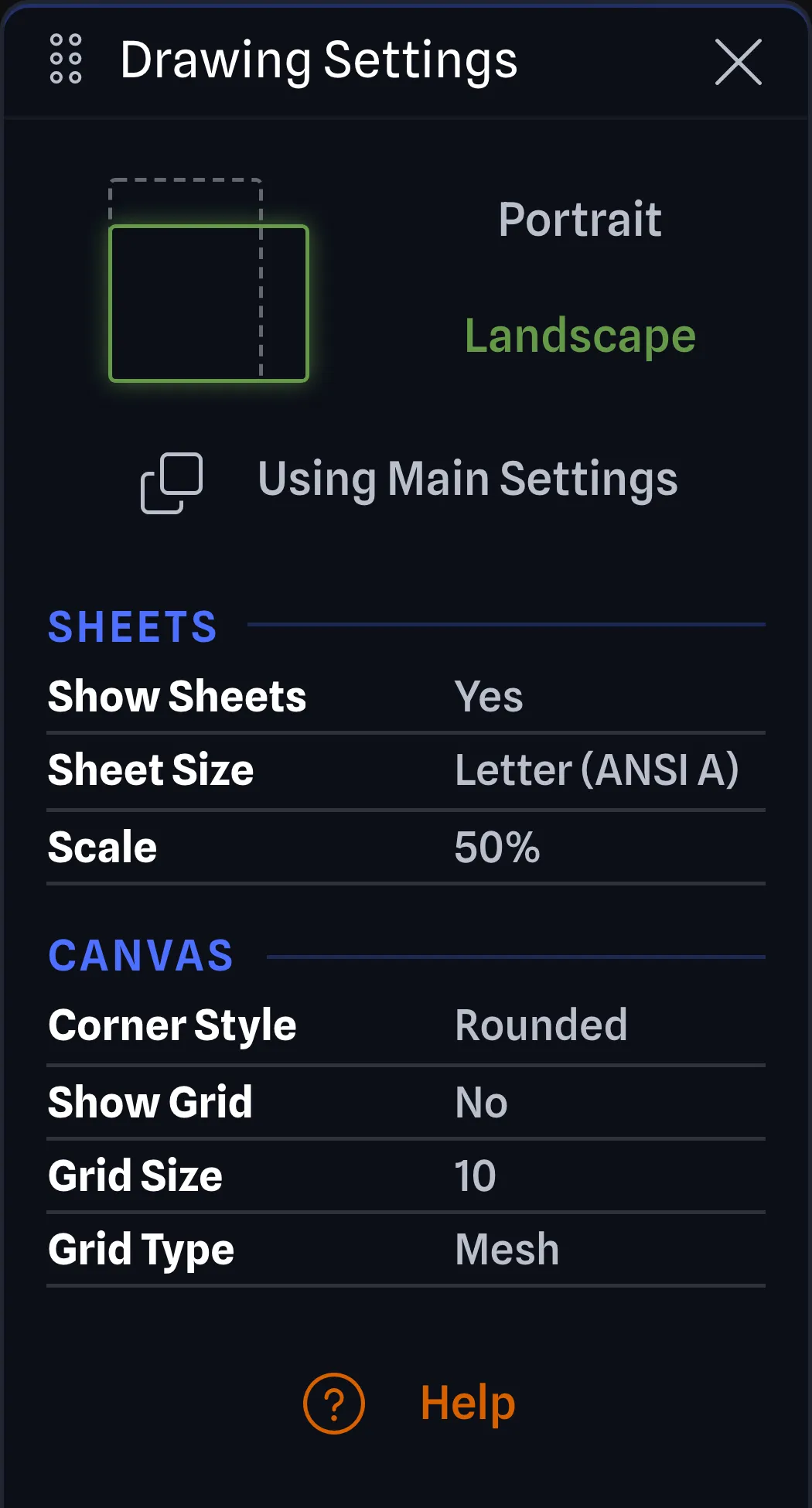
The Drawing Settings Pane has the settings for the sheets the drawing page is laid out on and the canvas it is drawn over. The Sheets rows belong to the drawing page you are looking at, and the Canvas rows below them belong to the whole project. The Help button at the bottom of the pane opens the Drawing Settings Help Dialog.
Ways to Access BETA APP
Section titled “Ways to Access ”There are four ways to open the Drawing Settings Pane:
- Click the Drawing Settings button on the Side Rail
- Use View > Drawing Settings
- Click the Print layout slot on the Side Rail, which opens it beside Export Settings
- Press
Ctrl+Shift+F(orCmd+Shift+Fon Mac)
Sheets BETA APP
Section titled “Sheets ”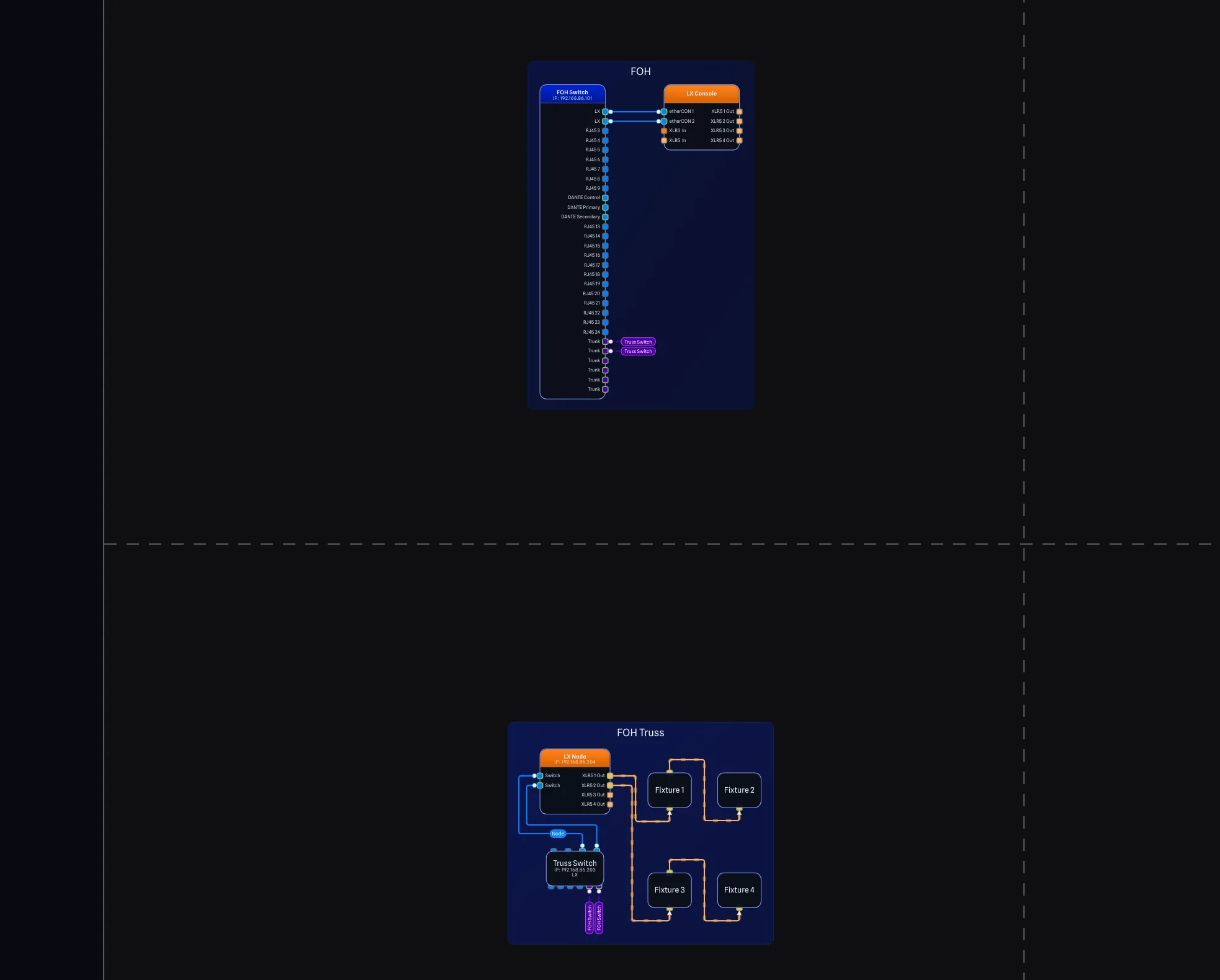
The sheets are what the drawing is laid out on. They decide where the sheet outlines fall on the canvas, and they are what an export on Fit to One Sheet or One per Sheet is measured against.
At the top of the pane, you can choose between Portrait and Landscape options. Click a button to set that orientation, or click the image to switch to the other one.
On a custom page, a button under the orientation selection shows Using Main Settings or Using Page Settings. Click it to switch that page between using the global project’s sheet settings and its own custom sheet settings. Main has no button, because its sheet settings act as the global settings.
The rows are:
-
Show Sheets (Pro feature): Whether the sheet outlines are drawn on the canvas, so you can see where each sheet ends. Yes or No (default). Changing a sheet setting (orientation, Sheet Size, Width (mm), Height (mm) or Scale), or switching between Using Main Settings and Using Page Settings, turns Show Sheets on so you can see the change.
-
Sheet Size (Pro feature): The sheet size the page is drawn on. The list runs A0 to A5, then Letter (ANSI A), Legal and Tabloid (ANSI B) (default), then the ANSI and ARCH sizes, and ends with Custom.
-
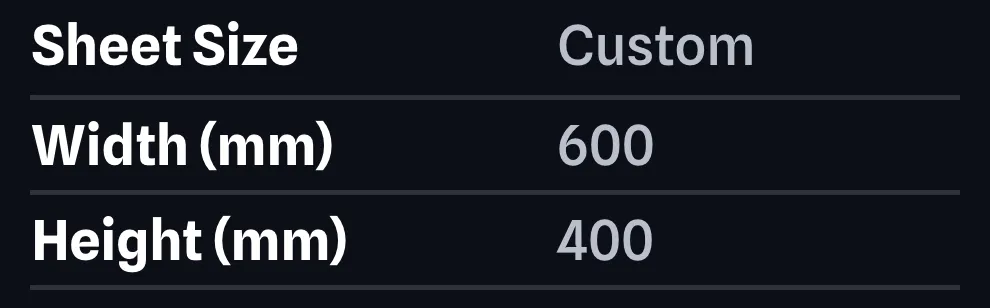
Width (mm) and Height (mm) (Pro feature): How wide and how tall the sheet is, in millimetres, from 100 to 5000. The two rows appear when Sheet Size is Custom.
-
Scale (Pro feature): How large the drawing is on the sheet, from 5% to 200%, 50% (default).
Canvas BETA APP
Section titled “Canvas ”Unlike the Sheets rows, the Canvas rows apply to the whole project, so they are the same on every page. The grid rows also appear on the Drawing tab of Project Settings, and Corner Style on its Gear tab.
- Corner Style: How the corners of gear and text boxes are drawn. See Corner Style.
- Show Grid: Whether the canvas grid is drawn. Yes or No.
- Grid Size: The size of the canvas grid, from 1 to 99. See Grid Size.
- Grid Type: How the canvas grid is drawn, Dot (default) or Mesh.