

Activity
Every notification the app shows you is recorded in the Activity list, so a pop-up that came and went is still there to read. You open the list from the bell in the Save Status.
The Activity Bell BETA APP
Section titled “The Activity Bell ”The bell is at the end of the Save Status in the top right of the header.
Click the bell to open the Activity list. When a save or sync finishes without an error, the bell flashes once, unless Reduced Animation is on.
The rest of the Save Status is covered on the Save Status page.
The Activity List BETA APP
Section titled “The Activity List ”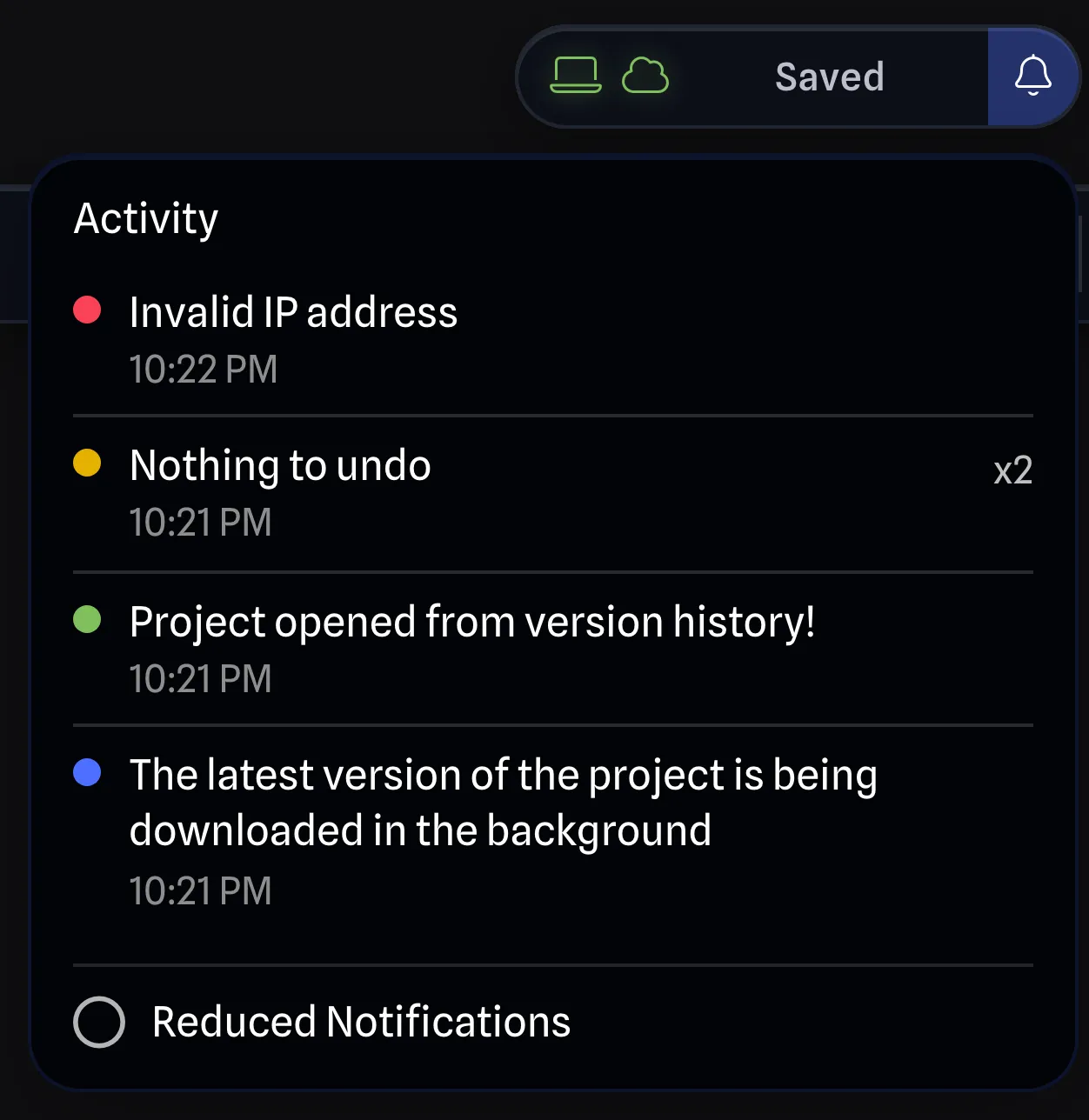
The list shows every app notification, newest first. Each entry shows:
- A coloured dot for the type of notification:
- Green: A success.
- Red: An error.
- Orange: A warning.
- Blue: Information.
- The message, with the caption underneath it when the notification has one.
- The time it appeared.
When the same notification appears twice in a row, the repeat collapses into the entry above it with a count at the right of the row, such as x3.
The list only covers your current session. It resets when you reload the app or log out.
Reduced Notifications BETA APP
Section titled “Reduced Notifications ”Reduced Notifications is a checkbox at the bottom of the list. It hides success pop-ups, while information, warnings and errors still appear.
The same setting is on the Preferences tab of User Settings.