

Export Settings
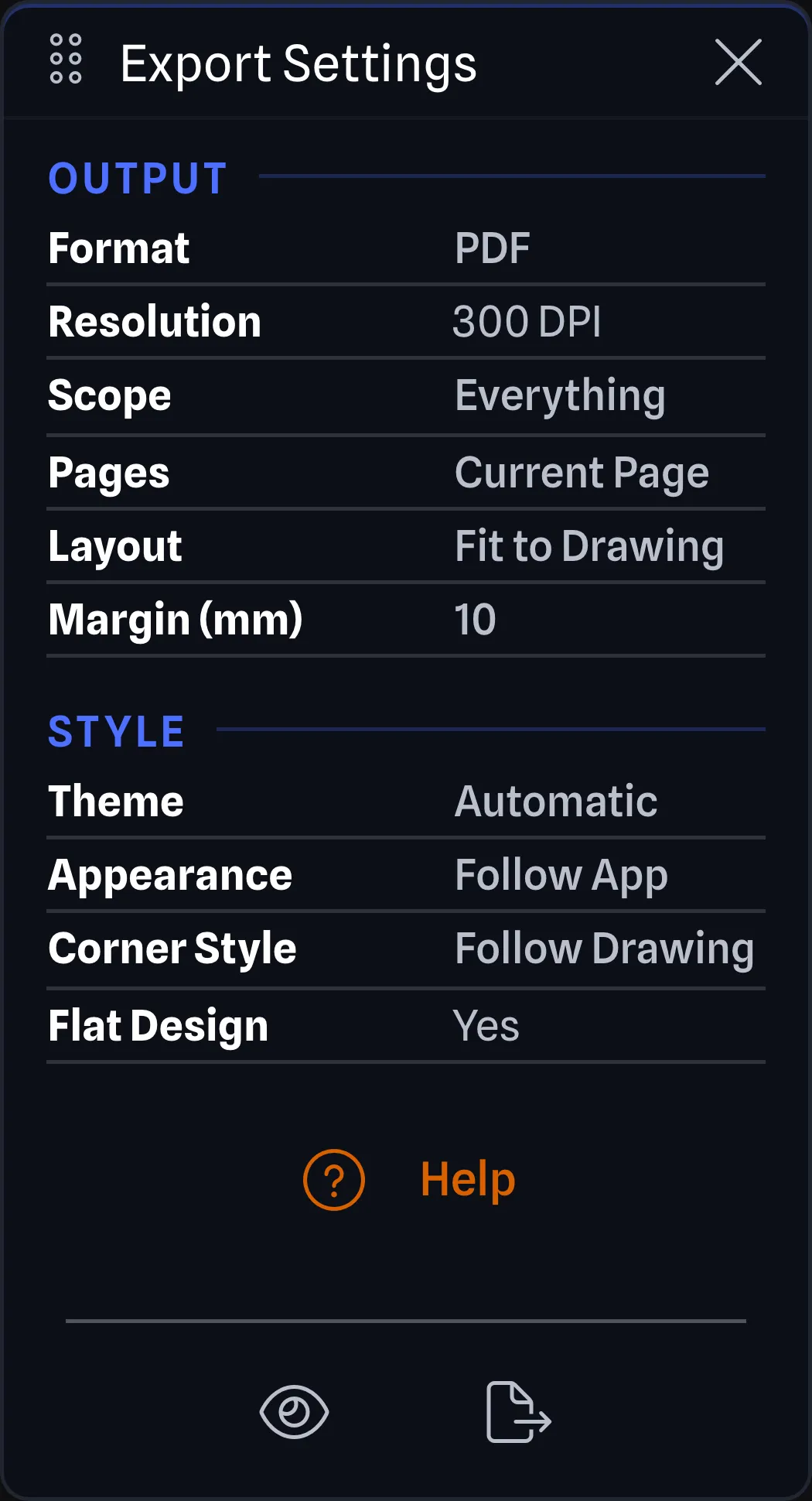
The Export Settings Pane allows you to customize how your drawing is exported. Every row on it is an output setting, so nothing here changes the drawing on the canvas. The footer has two buttons: Preview opens the Export Preview dialog, and Export starts the export. The Help button below the rows opens the Export Settings Help Dialog.
Ways to Access BETA APP
Section titled “Ways to Access ”There are four ways to open the Export Settings Pane:
- Click the Export Settings button on the Side Rail
- Use View > Export Settings
- Click the Print layout slot on the Side Rail, which opens it beside Drawing Settings
- Press
Ctrl+Shift+E(orCmd+Shift+Eon Mac)
Output BETA APP
Section titled “Output ”- Format: The file an export comes out as. PDF (default), JPG, PNG (Pro feature) or SVG (Pro feature).
- Resolution (Pro feature): How sharp a PNG or JPG export is, 72 DPI, 150 DPI, 300 DPI (default) or 600 DPI. PDF and SVG vector passed rather than pixels, so this setting applies to PNG and JPG only.
- Scope (Pro feature): How much of the drawing an export covers, Everything (default) or Selection Only. Selection Only exports what you have selected.
- Pages (Pro feature): Which drawing pages an export covers, Current Page (default) or All Pages. All Pages exports Main first, then the custom pages in the order of the Page Tabs.
- Layout (Pro feature): How each page is laid out in the export. Fit to Drawing (default) sizes the export to the drawing at 100%, with the margin around it, and uses no sheet. Fit to One Sheet scales the whole page onto one sheet of the page’s Sheet Size, inside the margin. One per Sheet follows the dashed sheet lines on the canvas at the page’s Scale, one sheet each.
- Margin (mm) (Pro feature): How much clear space an export leaves around the drawing, in millimetres, from 0 to 100, 10 (default).
Pages, Layout and Margin (mm) apply to every format. The sheet settings for the Fit to One Sheet and One per Sheet layouts come from the Sheets rows on the Drawing Settings Pane, which is where the sheet size, the orientation and the scale are set.
- Theme (Pro feature): The theme an export uses, Automatic, Light (default) or Dark.
- Appearance (Pro feature): The appearance an export uses. Follow App (default) uses the appearance you have picked for the app. Pick a specific appearance to override it and export with a different one.
- Corner Style (Pro feature): How the corners of gear and text boxes are exported. Follow Drawing (default) uses the corner style set for the drawing. Pick a specific style to override it and export with a different one.
- Flat Design (Pro feature): Whether the export loses its gradient effects and is flattened to solid colours, including on gear you coloured yourself and on gear groups and text boxes. Yes (default) or No. PDF exports are always flat.
Exporting BETA APP
Section titled “Exporting ”The Export button at the bottom of the pane starts the export with your chosen settings and downloads the file. To look at the export first, click Preview beside it.
The Draw Toolbar and File > Export also have one-click quick exports of the current page. They use fixed settings, not the ones on this pane.
What you get depends on the Format:
- PDF: One document with one PDF page per sheet. It is named after the project and its version, for example Main Stage v1.pdf.
- SVG, PNG and JPG: One file per sheet, named after the project, its version and the page, for example Main Stage v1 - Main.png. When a page splits into more than one sheet, each file ends with its sheet number, for example Main Stage v1 - Page 2 - Sheet 3.png. More than one file downloads as a single zip named after the project and its version, for example Main Stage v1.zip.
PNG and JPG exports are drawn at the Resolution you picked.
With Scope on Selection Only and nothing selected, the export is refused and a notice says Nothing is selected. Select something or set Scope to Everything.
Export Preview BETA APP
Section titled “Export Preview ”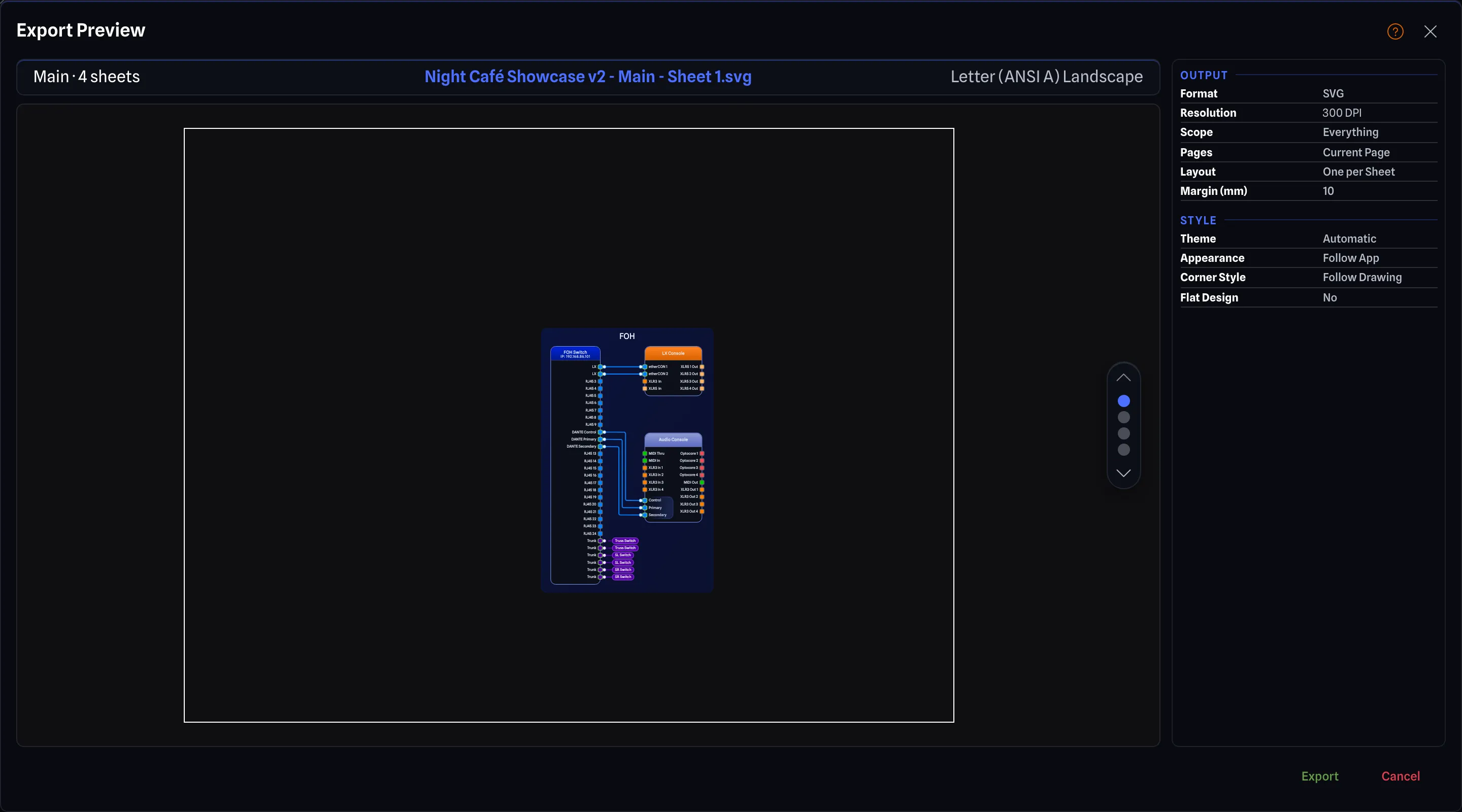
The Export Preview Dialog shows an export as it will come out, one document at a time. Click Preview in the footer of the Export Settings Pane to open it. The Help button (the question mark) beside the close button opens the Export Settings Help Dialog.
- Top bar: Shows which page you are previewing, how many sheets it exports to, and the size of the export.
- Documents: When the export has more than one page or sheet, step through its documents with the up and down arrows, the dots down the side, the arrow keys on your keyboard, or the mouse wheel over the preview.
- Settings: The Export Settings rows are on the right. Changing one updates the preview.
- Export downloads what the preview shows and closes the dialog. Cancel closes it without exporting.
With Scope on Selection Only, the preview covers what was selected when the dialog opened. With nothing selected, it shows Nothing is selected. Select something or set Scope to Everything. in place of the preview, and Export is disabled.