

Item Settings
The Item Settings Pane has the editable settings for whatever you have selected on the drawing: gear, connections, gear groups, text boxes, and selections of several items at once. Rows are grouped under headings naming the kind of setting, and a heading appears only when the selection has rows under it.
The shared rows are under Selection, General, Display, Ports, Colour, Tags and Cable, in that order, and a selected gear item adds its specific headings below them. Clicking a row opens the same editor as the Right Click Menu and the Edit Menu, so a value you set in one place shows the same everywhere. With nothing selected the pane shows Nothing selected.
Gear Rows BETA APP
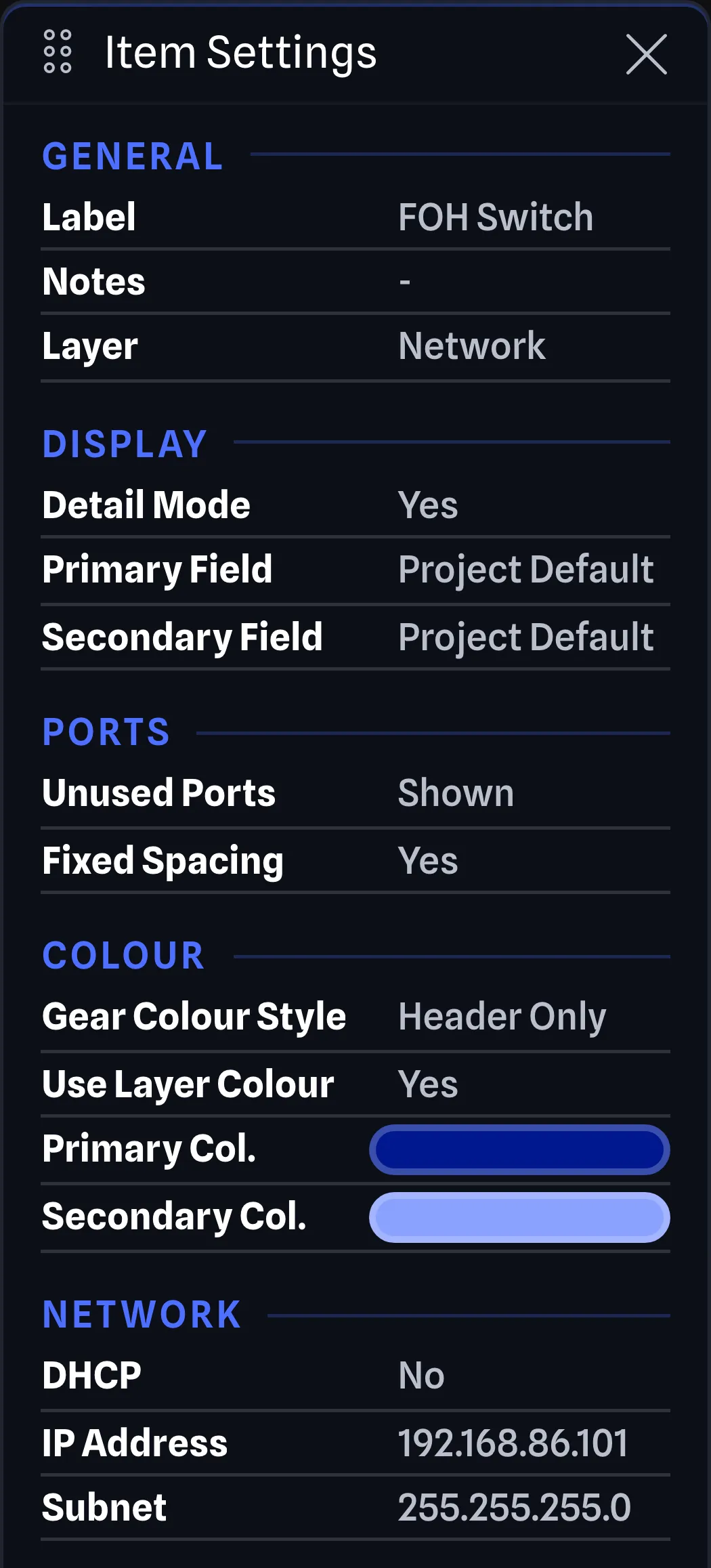
Section titled “Gear Rows ”The fields displayed for one selected gear item are:
- Label: The label of the gear item, this is editable by clicking on the label.
- Notes: Any notes you have added to the gear item, this is editable by clicking on the notes.
- Layer: The layer the gear item is on. An item on no layer shows -.
- Detail Mode: If Yes, the gear item is displayed in Detail Mode showing ports along the left and right sides. If No, the gear item is in Standard Mode with ports along the top and bottom. Clicking toggles between the two modes, rebuilding the gear and remapping connections. Learn more in Replacing Gear. Requires Local Mode to be enabled.
- Primary Field (Pro feature) and Secondary Field (Pro feature): What the two label lines under the gear title show. Learn more in Display Fields.
- Unused Ports: Whether the ports with no connections are hidden on the gear item. The row shows Hidden or Shown, and Mixed when the gear items in the selection disagree. Clicking it hides or shows them. Learn more in Unused Ports. Only applies to gear that has at least one unused port.
- Fixed Spacing: If Yes, the ports on the gear item will have a fixed spacing between them. If No, the ports will be evenly spaced across the gear item. Learn more in Fixed Port Spacing. Only applies to Detail Mode gear.
- Expansion Groups: If Yes, the ports on the gear item will be grouped by their expansion cards, separating them from the rest of the ports. If No, the ports will be combined with the rest of the ports. Learn more in Group Expansion Ports. Only applies to Detail Mode gear that have at least one expansion card.
- Gear Colour Style: How far the gear item’s colour spreads across it. Learn more in Gear Colour Style.
- Use Layer Colour: If Yes, the gear item takes the colour of its layer in the drawing.
- Primary Col.: The background (or header) colour of the gear item. Clicking the swatch opens the colour dialog.
- Secondary Col.: The border colour of the gear item. Clicking the swatch opens the colour dialog.
Rows that have a Yes or No value toggle when you click them.
Connection Rows BETA APP
Section titled “Connection Rows ”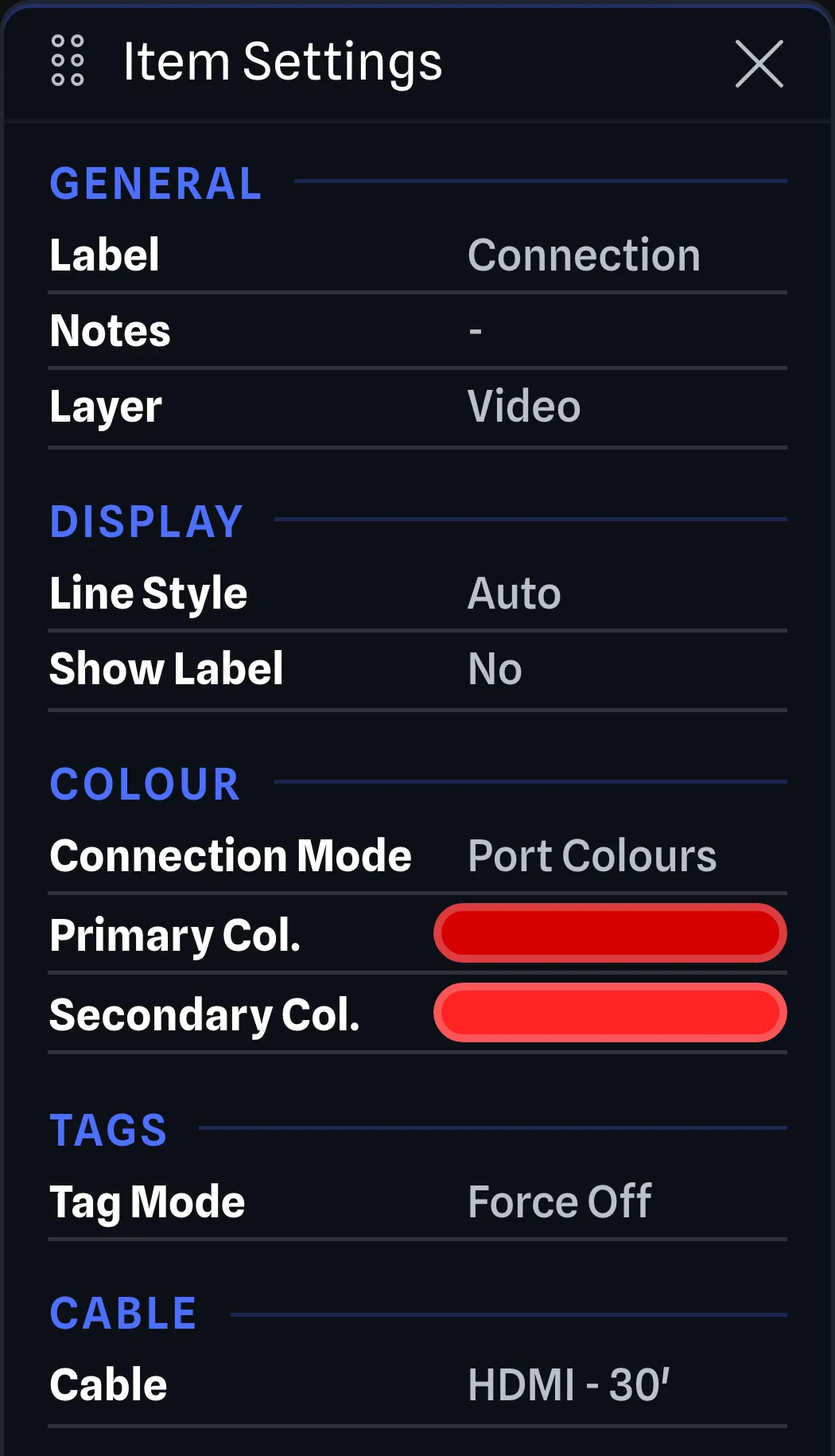
The fields displayed for one selected connection are:
- Label: The label of the connection, this is editable by clicking on the label. A connection drawn as a tag has no Label row.
- Notes: Any notes you have added to the connection, this is editable by clicking on the notes.
- Layer: The layer the connection is on.
- Line Style: How the connection is drawn between its two ends.
- Show Label: If Yes, the connection’s label is shown on the drawing. If No, the label is hidden and keeps its text. Saving a label from the Label row turns it on. The row cannot be clicked on a connection drawn as a tag, since the tag decides what the connection shows. Learn more in Connection Labels.
- Connection Mode: Where the connection takes its colour from, with the custom setting reading Custom Col.
- Primary Col.: The colour of the connection line. Clicking the swatch opens the colour dialog.
- Secondary Col.: The border colour of the connection’s labels. Clicking the swatch opens the colour dialog.
- Tag Mode (Pro feature): Whether the connection draws as a tag instead of a full line.
- Tag Labels (Pro feature): What a tag’s label should display. This row appears when the connection’s tag mode allows tags.
- Cable (Pro feature): The cable inventory item assigned to the connection. A connection with no cable shows Unassigned.
Text Box Rows BETA APP
Section titled “Text Box Rows ”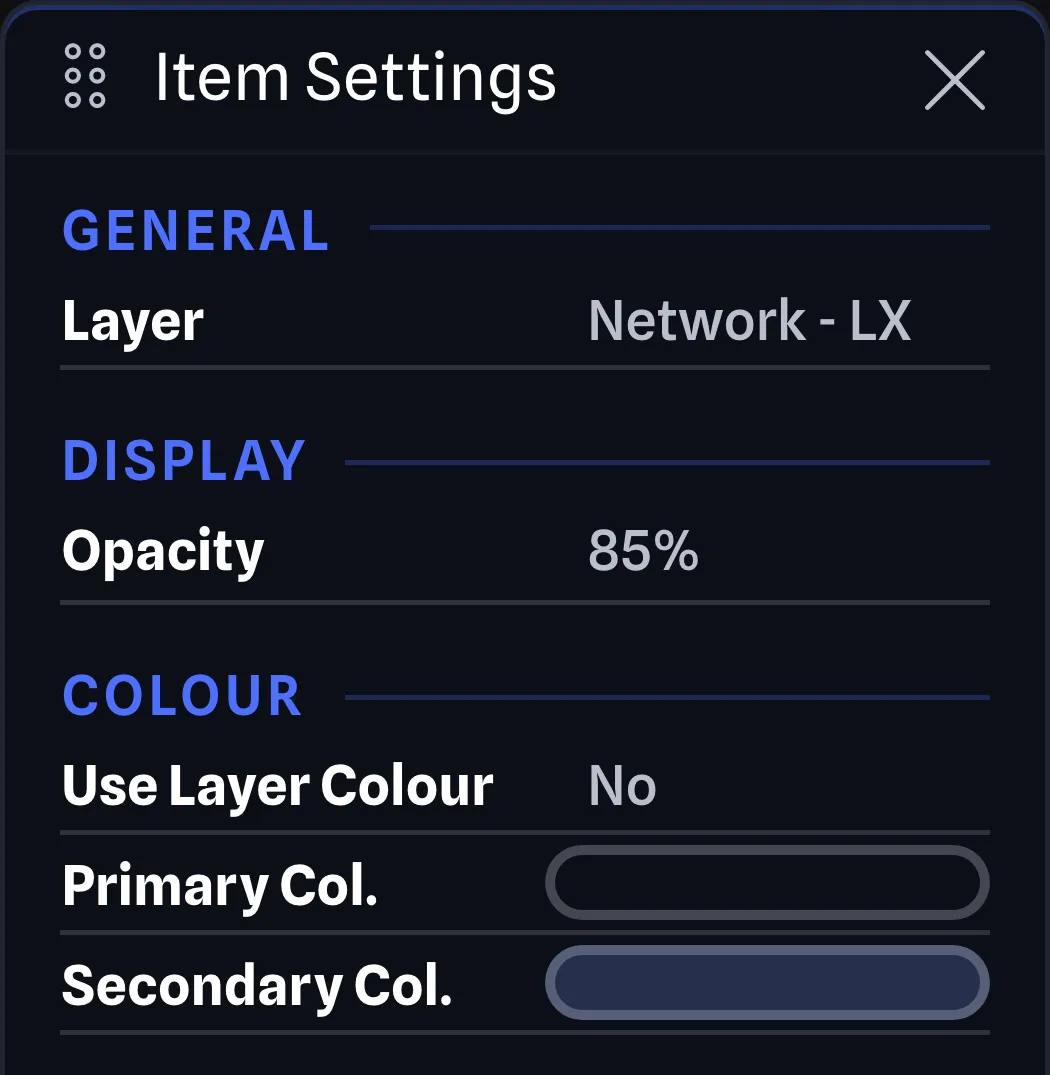
The fields displayed for one selected text box are:
- Layer: The layer the text box is on.
- Opacity: How see-through the text box background is. Learn more in Text Box Opacity.
- Use Layer Colour: If Yes, the text box takes the colour of its layer in the drawing.
- Primary Col.: The background colour of the text box. Clicking the swatch opens the colour dialog.
- Secondary Col.: The border colour of the text box. Clicking the swatch opens the colour dialog.
Gear Group Rows BETA APP
Section titled “Gear Group Rows ”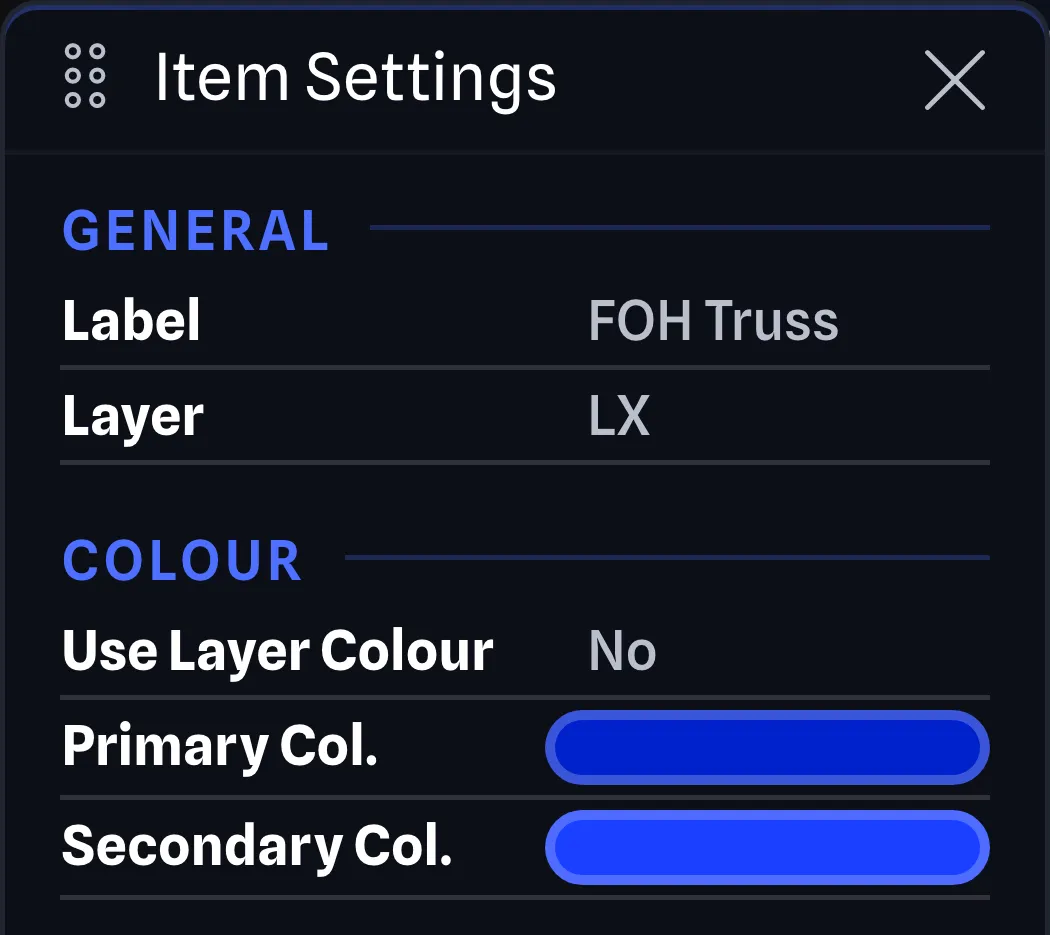
The fields displayed for one selected gear group are:
- Label: The label of the gear group, this is editable by clicking on the label.
- Layer: The layer the gear group is on.
- Use Layer Colour: If Yes, the gear group takes the colour of its layer in the drawing.
- Primary Col.: The background colour of the gear group. Clicking the swatch opens the colour dialog.
- Secondary Col.: The border colour of the gear group. Clicking the swatch opens the colour dialog.
Multi-Selection BETA APP
Section titled “Multi-Selection ”With more than one item selected, the pane opens with a Selection heading and a Selected row giving the count, such as 3 items. With a type filter active, the row counts the filtered items against the total, such as 3 of 8 items.
The Label row shows Labels for a multi-selection, and the Detail Mode and Cable rows only appear for a single item. Every other row summarizes the selected items, or only the filtered items while a type filter is active, and shows Mixed where they disagree.
Category Specific Fields BETA APP
Section titled “Category Specific Fields ”Some gear categories have additional fields that are specific to that category. When a single gear item is selected, these fields are appended below the rows above and are editable by clicking on the field unless otherwise noted. The network fields are under a Network heading, the lighting fixture fields under DMX and the amplifier field under Power. IP Address and Subnet are hidden while DHCP is Yes.
Switches
Section titled “Switches”- DHCP: Whether the gear uses DHCP for automatic IP address assignment.
- IP Address: The IP address of the gear. Displays “DHCP” in Reports when DHCP is enabled.
- Subnet: The subnet of the gear. Displays “DHCP” in Reports when DHCP is enabled.
PTZ Cameras
Section titled “PTZ Cameras”- DHCP: Whether the gear uses DHCP for automatic IP address assignment.
- IP Address: The IP address of the gear. Displays “DHCP” in Reports when DHCP is enabled.
- Subnet: The subnet of the gear. Displays “DHCP” in Reports when DHCP is enabled.
Video Distributions
Section titled “Video Distributions”- DHCP: Whether the gear uses DHCP for automatic IP address assignment.
- IP Address: The IP address of the gear. Displays “DHCP” in Reports when DHCP is enabled.
- Subnet: The subnet of the gear. Displays “DHCP” in Reports when DHCP is enabled.
Lighting Fixtures
Section titled “Lighting Fixtures”- Profile: The DMX profile the lighting fixture is set to. A fixture whose library item has no DMX profiles shows NA.
- Channels: The number of DMX channels the current profile is using. This is not editable and is determined based on the Profile set.
Lighting Distributions
Section titled “Lighting Distributions”- DHCP: Whether the gear uses DHCP for automatic IP address assignment.
- IP Address: The IP address of the gear. Displays “DHCP” in Reports when DHCP is enabled.
- Subnet: The subnet of the gear. Displays “DHCP” in Reports when DHCP is enabled.
Computers
Section titled “Computers”- DHCP: Whether the gear uses DHCP for automatic IP address assignment.
- IP Address: The IP address of the gear. Displays “DHCP” in Reports when DHCP is enabled.
- Subnet: The subnet of the gear. Displays “DHCP” in Reports when DHCP is enabled.
Video Switchers
Section titled “Video Switchers”- DHCP: Whether the gear uses DHCP for automatic IP address assignment.
- IP Address: The IP address of the gear. Displays “DHCP” in Reports when DHCP is enabled.
- Subnet: The subnet of the gear. Displays “DHCP” in Reports when DHCP is enabled.
Replay Systems
Section titled “Replay Systems”- DHCP: Whether the gear uses DHCP for automatic IP address assignment.
- IP Address: The IP address of the gear. Displays “DHCP” in Reports when DHCP is enabled.
- Subnet: The subnet of the gear. Displays “DHCP” in Reports when DHCP is enabled.
Amplifiers
Section titled “Amplifiers”- Power Mode: The power mode the amplifier is set to. An amplifier whose library item has no power modes shows NA.
Audio Equipment
Section titled “Audio Equipment”- DHCP: Whether the gear uses DHCP for automatic IP address assignment.
- IP Address: The IP address of the gear. Displays “DHCP” in Reports when DHCP is enabled.
- Subnet: The subnet of the gear. Displays “DHCP” in Reports when DHCP is enabled.
Audio Distributions
Section titled “Audio Distributions”- DHCP: Whether the gear uses DHCP for automatic IP address assignment.
- IP Address: The IP address of the gear. Displays “DHCP” in Reports when DHCP is enabled.
- Subnet: The subnet of the gear. Displays “DHCP” in Reports when DHCP is enabled.
Power Distributions
Section titled “Power Distributions”- DHCP: Whether the gear uses DHCP for automatic IP address assignment.
- IP Address: The IP address of the gear. Displays “DHCP” in Reports when DHCP is enabled.
- Subnet: The subnet of the gear. Displays “DHCP” in Reports when DHCP is enabled.