

Drawing Pages
A drawing page is a named set of layers with its own sheet settings. One project can have as many as you need, so separate pages for lighting, video and audio can all live in the same project and each be exported on their own.
Each page is a tab in the Page Tabs, which float at the bottom of the drawing area in the corner opposite the Mini Map. Moving the Mini Map to the other corner swaps the two sides. Click a tab to switch to that page.

Main is the first tab and every project has it. It shows every layer in the project, whichever pages those layers are also on, and it has the sheet settings the other pages start from. It cannot be renamed, moved or deleted.
Adding a Page (Pro feature) BETA APP
Section titled “Adding a Page ”The + at the end of the Page Tabs adds a page, tooltipped Add a page. The page is named for the next free number, with Main counting as the first page, so the first page you add is Page 2. The drawing switches to the page, and the page layers dialog opens so you can choose the layers it shows.
Put more layers on the page from the Layers entry in the page menu, or from the Pages column in the Layer Manager.
Page Menu (Pro feature) BETA APP
Section titled “Page Menu ”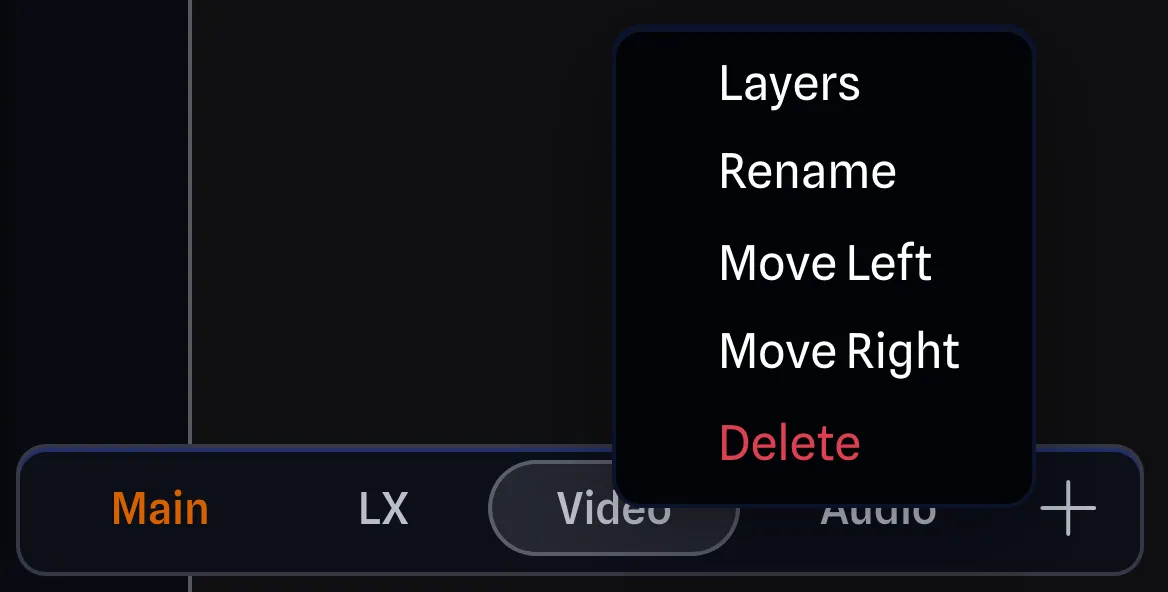
Right-clicking a page tab opens its menu. Main has no menu.
- Layers: Opens a dialog titled Layers on “Page 2” where you select the layers the page shows. See Choosing a Page’s Layers.
- Rename: Renames the page. Page names are unique within a project, ignoring case, so a name another page already uses, Main included, is refused with This name is already in use.
- Move Left and Move Right: Moves the tab one place to the left or right.
- Delete: Deletes the page after a Delete Page confirmation. See Deleting a Page.
While the project is locked or read only, for example one you do not have permission to change, you can still switch between its pages, but you cannot add, rename, move or delete them, change their layers or edit their sheet settings.
Choosing a Page’s Layers (Pro feature) BETA APP
Section titled “Choosing a Page’s Layers ”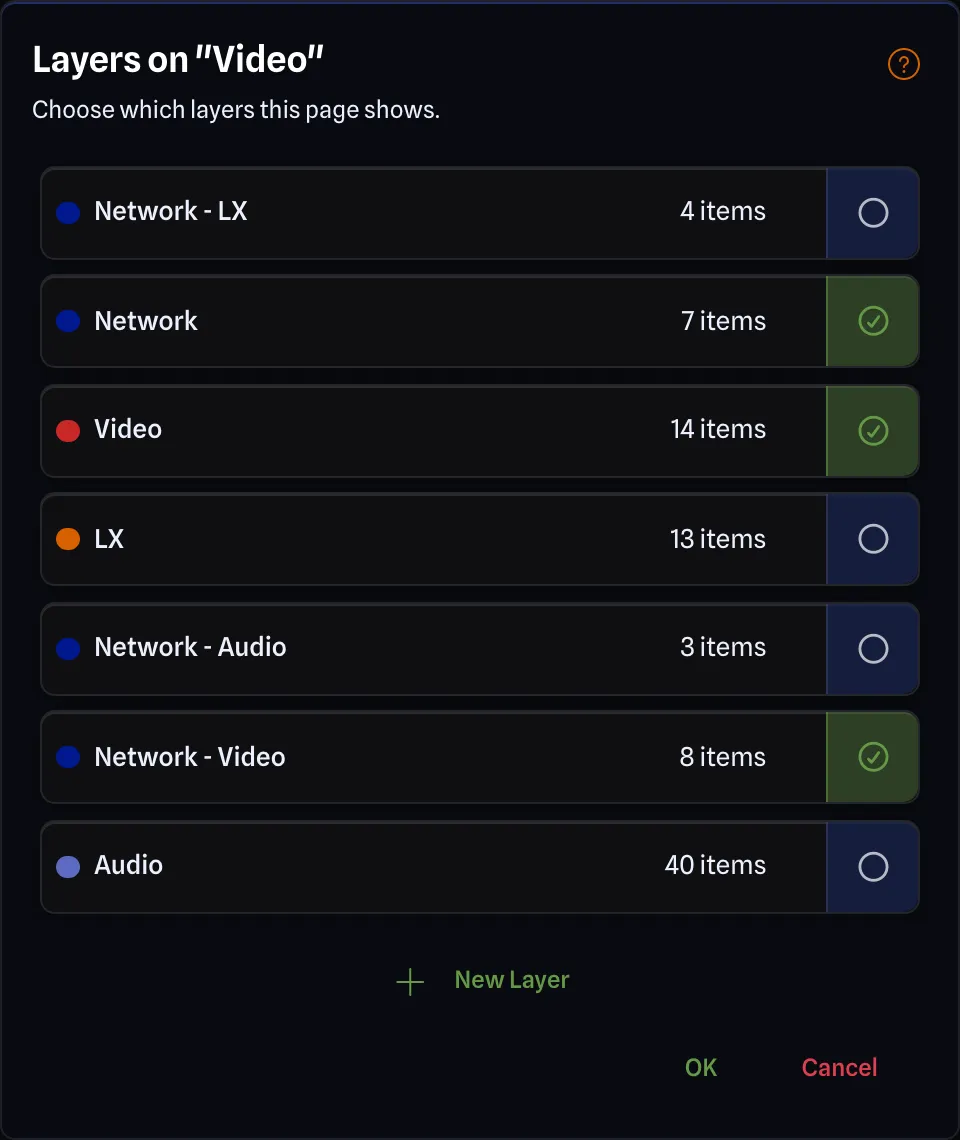
The page layers dialog shows a card for each layer in the project, with the layer’s colour, its name and how many items are drawn on it. Click anywhere on a card to select or deselect the layer. A selected layer’s checkbox is checked and the end of its card turns green. OK puts the selected layers on the page and Cancel leaves the page as it was.
- The dialog always keeps at least one layer selected, so the last selected layer cannot be deselected.
- New Layer at the bottom of the dialog asks for a name, creates the layer and selects it. It joins the page when you click OK, making it easy to quickly add a new layer to the page.
- The Help button at the top of the dialog opens Page Layers Help, which explains how pages and layers relate to each other.
The item count matches the Items column in the Layer Manager, which counts gear (on or off the canvas), gear groups, text boxes and connections. Taking a layer off a page deletes nothing drawn on it, and it is still on Main.
Drawing on a Page BETA APP
Section titled “Drawing on a Page ”On a custom page, the Selected Layer dropdown in the Draw Toolbar lists only the layers on that page, so whatever you draw ends up on one of them. The Add Layer button beside it creates a layer and puts it on the page as well.
Deleting a Page BETA APP
Section titled “Deleting a Page ”Deleting a page removes only the page. Its layers and everything drawn on them stay in the project and still show on Main. If you delete the page you are on, the drawing switches to Main.
Scrolling the Page Tabs BETA APP
Section titled “Scrolling the Page Tabs ”When there are more tabs than the Page Tabs can show, use the chevrons at their end to scroll through them. The page you switch to scrolls itself into view.
Sheets and Exports BETA APP
Section titled “Sheets and Exports ”A custom page uses the same sheet settings as Main until you give it its own. Click Using Main Settings in the Drawing Settings Pane to switch it.
On the Export Settings Pane, Pages decides how much an export covers: Current Page takes the page you are looking at, and All Pages takes Main first, then every custom page in the order of their tabs. A Scope of Selection Only always takes the current page. SVG, PNG and JPG exports name each file after its page.
Pages in the Address BETA APP
Section titled “Pages in the Address ”The page you are on is part of the project’s URL, making it easy to bookmark and share specific pages in your project.