

Item Properties
The Item Properties Pane will display the properties of whatever you have selected on the drawing. This is a view only pane, so you cannot edit anything here. To edit a selection, use the Item Settings Pane.
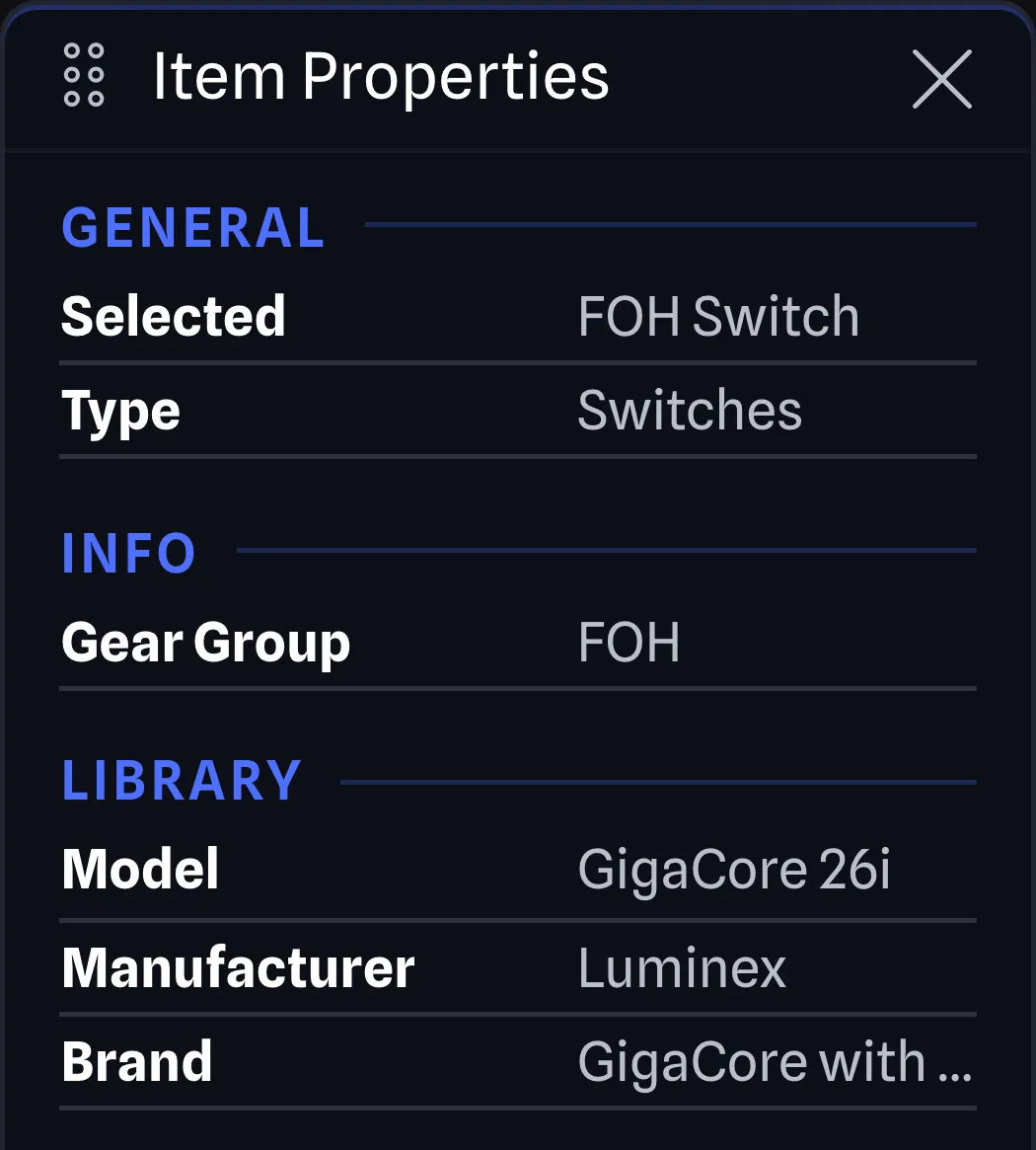
Single Gear Selection BETA APP
Section titled “Single Gear Selection ”The fields displayed for one selected gear item are under three headings:
- General: Selected, the selected gear item’s label, and Type, the library category the gear item belongs to, such as Switches.
- Info: Gear Group, the label of the gear group the gear item is in. A group with no label shows its number, such as Gear Group 1, as covered under Group Label. The field shows - where the gear item is in no group.
- Library: Model, the model name of the gear item based on the library item, Manufacturer, the manufacturer the brand belongs to, and Brand, the brand the library item belongs to.
Expansion Cards BETA APP
Section titled “Expansion Cards ”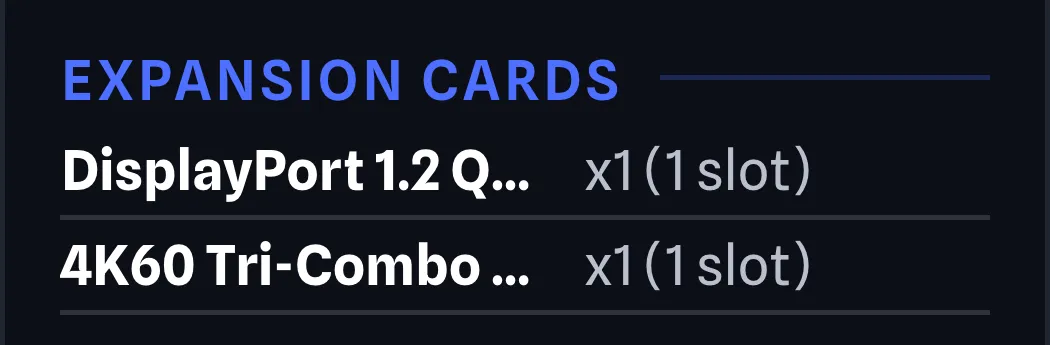
For some gear items, there is additional information available if they have Expansion Cards. When the selected gear item has any, an Expansion Cards section follows the gear fields with a row for each card in the current gear’s configuration. The row names the card and counts how many of it the gear item has, with the slot size where the card takes slots, such as x2 (1 slot). A card that belongs to an expansion card group shows the group name after the card name.
Connections BETA APP
Section titled “Connections ”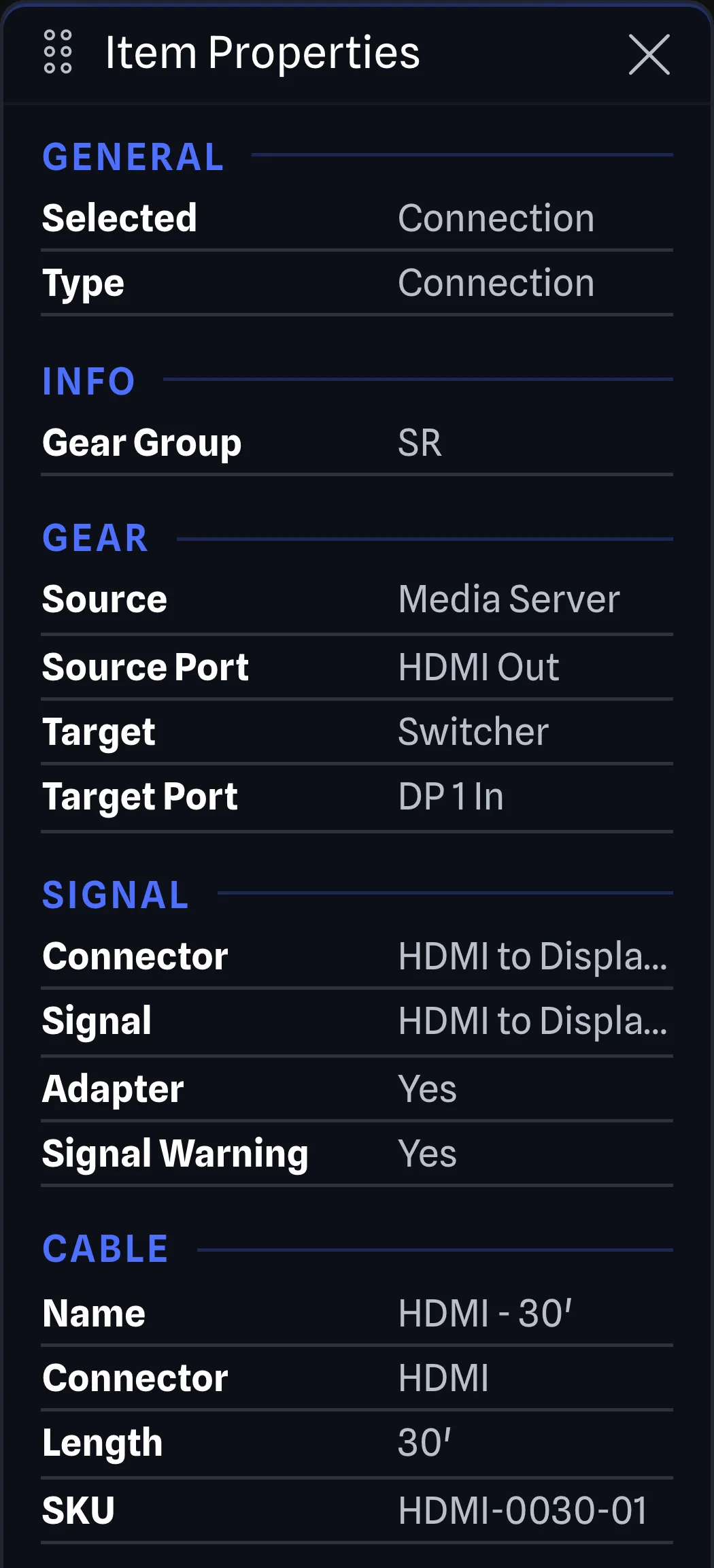
Selecting a connection gives you five groups of fields:
- General: Selected, the label of the connection, or Connection where it has no label, and Type, which shows Connection.
- Info: Gear Group, which names the gear group the connection is in the same way it does for gear, or shows - where the connection is in no group. See Gear Groups for when a connection belongs to a group.
- Gear: Source, Source Port, Target and Target Port, naming the gear at each end of the connection and the port it connects to.
- Signal: Connector and Signal show the single value where both ends match, or both values joined by to where the ends differ. Adapter shows Yes where the connection needs an adapter and No where it does not, and Signal Warning shows Yes where there is a signal type mismatch and No where there is not.
- Cable: Name, Connector, Length and SKU, taken from the cable inventory item assigned to the connection.
Gear Groups BETA APP
Section titled “Gear Groups ”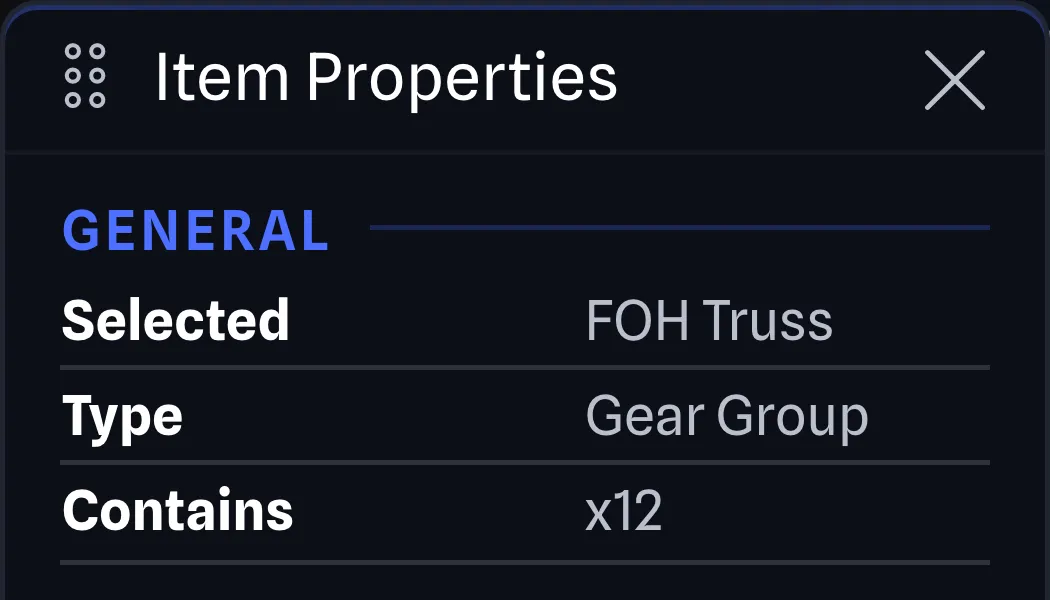
The fields displayed for one selected gear group are:
- Selected: The group’s label, or its number for a group with no label, the same way the Gear Group field does for gear.
- Type: Shows Gear Group.
- Contains: How many items are inside the group, such as x3.
Text Boxes BETA APP
Section titled “Text Boxes ”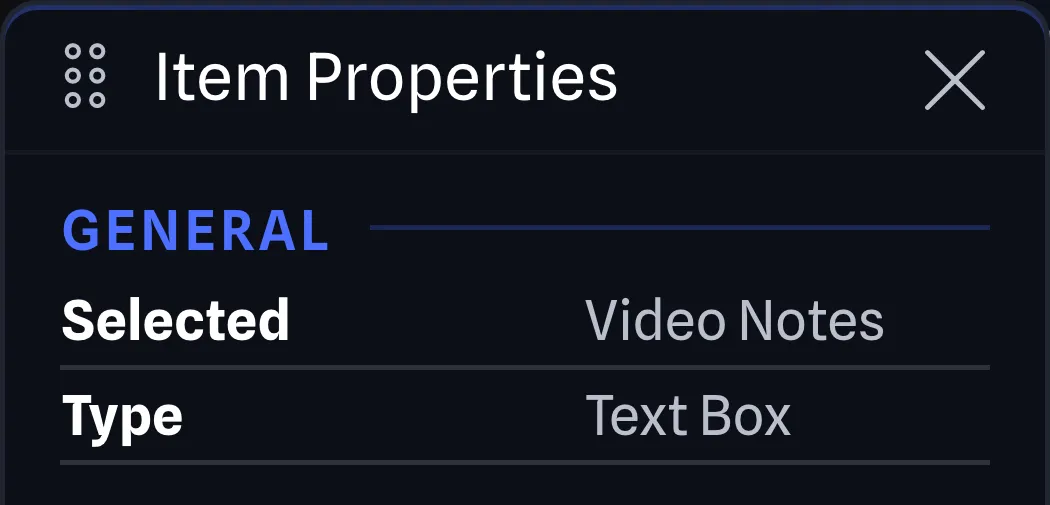
The fields displayed for one selected text box are:
- Selected: The text box’s text, or Text Box where it has none.
- Type: Shows Text Box.
Multi-Selection BETA APP
Section titled “Multi-Selection ”Selecting more than one item displays a Selection heading, with Selected showing the total, such as 3 items. Below the total is a row for each type in the selection: Gear Item, Connection, Gear Group and Text Box. Each row counts the items of that type, such as x2, and a type with nothing selected is left out.
Empty Values BETA APP
Section titled “Empty Values ”A field that is empty but can be set shows -, such as the Cable fields of a connection with no cable assigned, or Signal where the ports have no signal type. Where only one port has a signal type, the other side shows -, such as HDMI to -. A field whose setting does not apply shows NA. A port or cable with a generic connector shows Generic.
The Hover Cards follow the same rules.