

Side Rail
The Side Rail is the narrow strip of buttons down the left edge of the Draw and Report Pages. From the top it has the numbered layout slots, one button for each pane on the page, Project Settings, and the project managers.
While a pane is open in the left column, the rail is one solid strip joined to the header. With the left column empty, its sections float over the drawing or spreadsheet as separate rounded groups.

Layout Slots BETA APP
Section titled “Layout Slots ”Each page has up to six numbered layout slots, shown as small icon buttons with their number in the corner. Clicking a slot applies the arrangement saved on it: which panes are open, which column they are in, the order they stack in, and their heights.
The Draw Page ships with Drawing, Editing, Print and All Closed on slots 1 to 4. The Report Page ships with Report and All Closed on slots 1 and 2. Saving a layout onto a number takes that slot over.
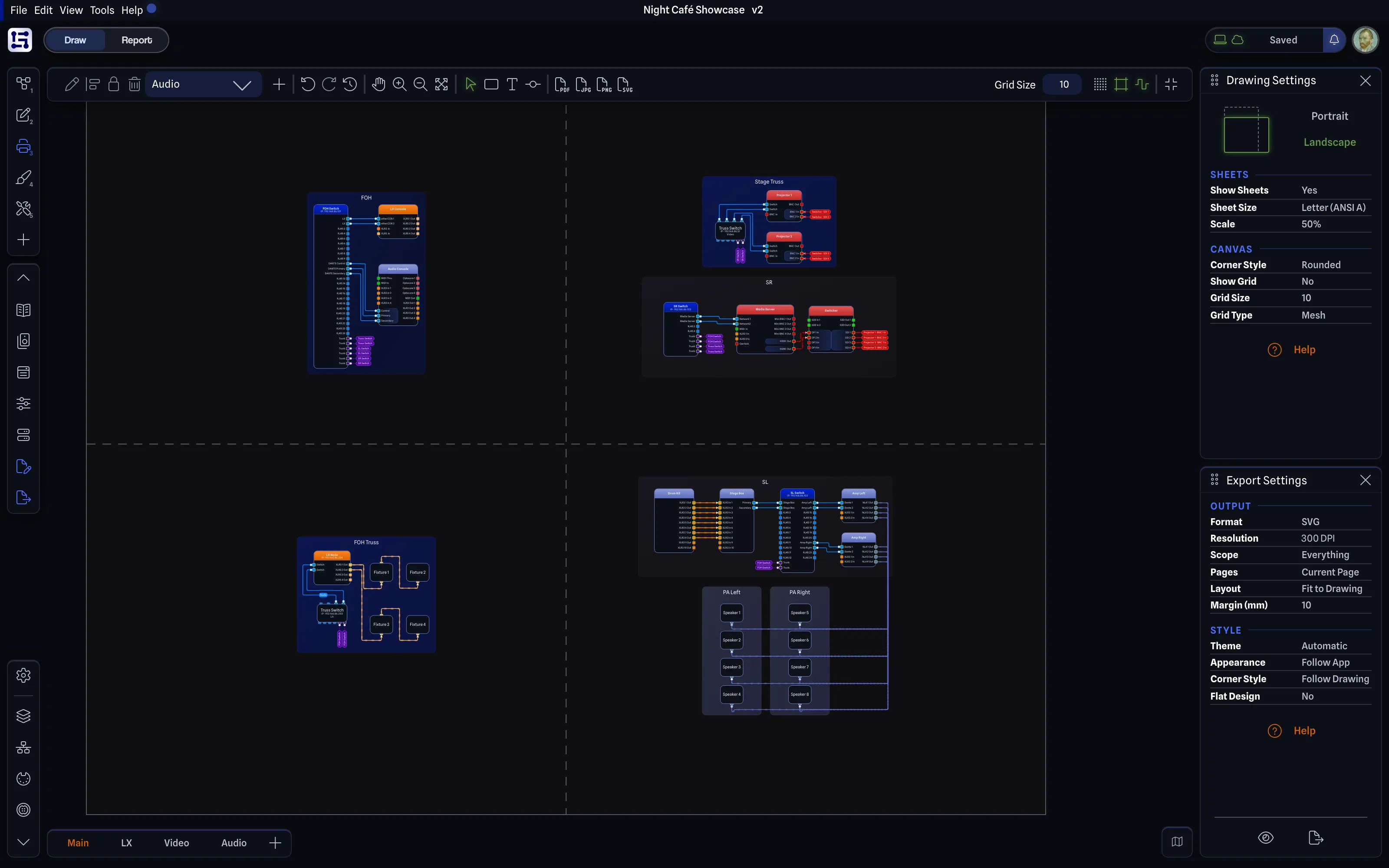
The Print slot closes the other panes and opens Drawing Settings and Export Settings in the right column, so the sheet and export settings are side by side with the whole drawing in view.
The slot you clicked last stays highlighted. Once you move, open or close a pane, the highlight shifts colour and the tooltip says the slot name followed by : Unsaved changes; right-click to update, for example Drawing: Unsaved changes; right-click to update. Resizing a pane does not count as a change.
Right-clicking a slot offers:
- Update with Current Layout: saves the arrangement on screen onto that slot.
- Edit Name & Icon: opens the Edit Layout Dialog, where you set the slot’s Name and pick its icon from the grid.
- Reset to Default or Delete: only on a slot you have saved. It shows Reset to Default when that number ships a default layout, and Delete when it does not. A slot still showing its shipped default has neither entry.
The plus button under the slots, tooltip Save current layout as a new slot, saves the arrangement on screen into the next free number. It opens the Save Layout Dialog, which has the same Name field and icon grid. It disappears once all six numbers are in use.
View > Reset Layout in the View Menu restores the current page’s default layouts and applies slot 1.
Pane Buttons BETA APP
Section titled “Pane Buttons ”Below the slots is one toggle button per pane on the current page. A button is lit while its pane is open, and clicking it opens or closes that pane. The tooltips say Show Item Settings and Hide Item Settings, naming the pane on the button. The panes themselves are covered in Panes Overview.
The chevron above the pane buttons folds them away, tooltips Show Pane Toggles and Hide Pane Toggles.
Project Settings BETA APP
Section titled “Project Settings ”The Project Settings button is at the bottom of the rail, above the managers, and opens the Project Settings dialog. It is disabled while the project is locked.
Managers BETA APP
Section titled “Managers ”The bottom of the rail has the four project managers, on both the Draw and Report Pages:
- Layer Manager, shortcut
Ctrl+L(orCmd+Lon Mac) - VLAN Manager, shortcut
Ctrl+M(orCmd+Mon Mac) - Port Manager, shortcut
Ctrl+P(orCmd+Pon Mac) - Cable Inventory Manager (Pro feature), shortcut
Ctrl+I(orCmd+Ion Mac)
The dialog slides in from the left, beside the rail. While a manager is open, its Side Rail
button stays highlighted. Click anywhere outside the manager or press Esc to close it. The
shortcut works on the Draw and Report Pages while a project is open, and does nothing while
no project is loaded or the project is locked.
The Cable Inventory Manager is part of Pro. All four buttons are disabled while the project is locked.
The chevron under the managers folds the manager buttons away, tooltips Show Managers and Hide Managers.
On Small Screens BETA APP
Section titled “On Small Screens ”Below roughly tablet width the Side Rail is hidden, along with the panes, leaving the drawing or the report the full width of the window.