

Mini Map
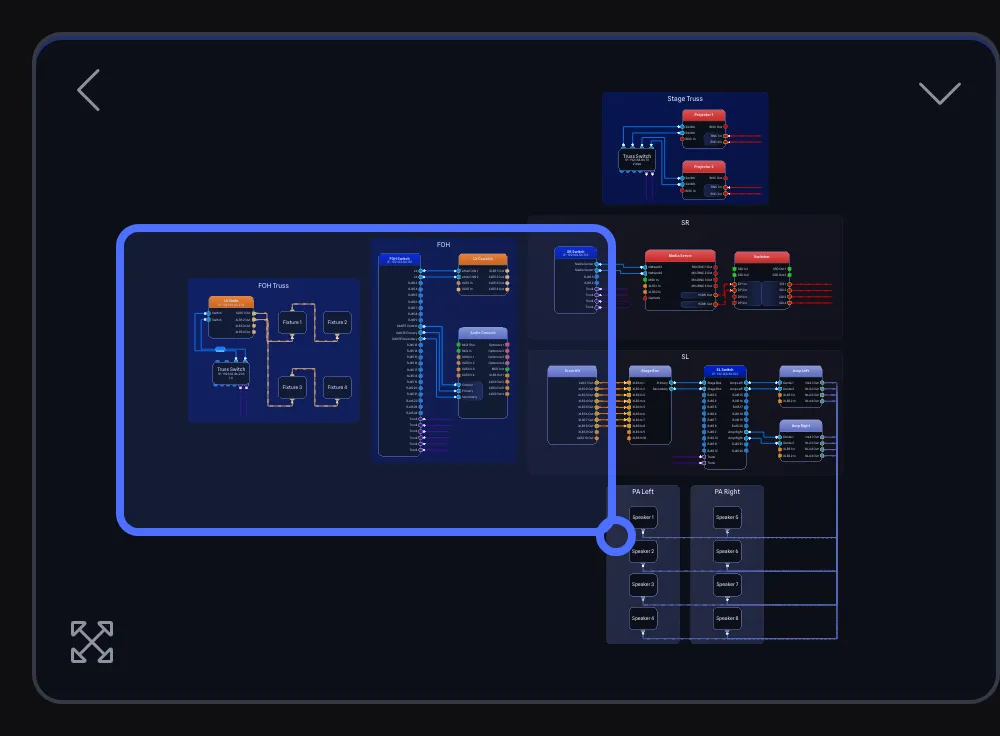
The Mini Map is a thumbnail of your whole drawing that floats in a bottom corner of the Draw Page. A rectangle on the thumbnail marks the part of the drawing you are looking at, and you can drag it to move around.
On a custom drawing page, the thumbnail shows only what that page shows, and is framed on that page’s content rather than the whole drawing.
On a drawing with more than 100 connections, the thumbnail shows the gear and leaves the connections out.
Opening and Closing BETA APP
Section titled “Opening and Closing ”Collapsed, the Mini Map is a small square button with a map icon in the bottom corner of the drawing. Its tooltip says Expand Mini Map. Click the button to expand the thumbnail.
While the Mini Map is expanded, hovering over it reveals a chevron on its outer top corner tooltipped Collapse Mini Map. Click the chevron to collapse the Mini Map back to the corner button. The box grows and shrinks with a short animation.
The corner button stays in place, so collapsing the Mini Map is how you get it out of the way.
Moving the Mini Map BETA APP
Section titled “Moving the Mini Map ”The Mini Map can be in either bottom corner of the drawing area. Hovering over the expanded Mini Map reveals a chevron on its inner top corner. Click that chevron to slide the Mini Map to the other corner. The tooltip says Move Mini Map left while the Mini Map is docked right, and Move Mini Map right while it is docked left.
The Page Tabs take the opposite bottom corner, so moving the Mini Map swaps the two sides.
When you shorten the pane column on the Mini Map’s side, as covered in Resizing Panes, the Mini Map moves into the free space under that column once there is room for it, and moves back when the column grows again.
Moving Around the Drawing BETA APP
Section titled “Moving Around the Drawing ”Drag inside the thumbnail to move the view rectangle. The drawing pans to match, so the rectangle always shows where you are. The Selection Toolbar hides while you drag and comes back when you let go.
For the other ways to move around your drawing, see Pan Mode.
Zooming BETA APP
Section titled “Zooming ”Scrolling your mouse wheel over the expanded Mini Map zooms the drawing in and out, the same as the zoom controls on the Draw Toolbar.
Hovering over the expanded Mini Map also reveals a button on its inner bottom corner tooltipped Zoom to Fit. It frames the whole drawing, or on a custom page that page’s content, the same as the Zoom to Fit button on the Draw Toolbar.